 Showroom TV
Estate agent window display that keeps up with your listings
Paper cards fade, curl and go out of date the day a property goes under offer. Put your listing cards on portrait screens instead and swap them from your desk. You upload every card yourself; nothing is imported from a portal or CRM.
- Cancel anytime
- No long-term contract
- 14 days free
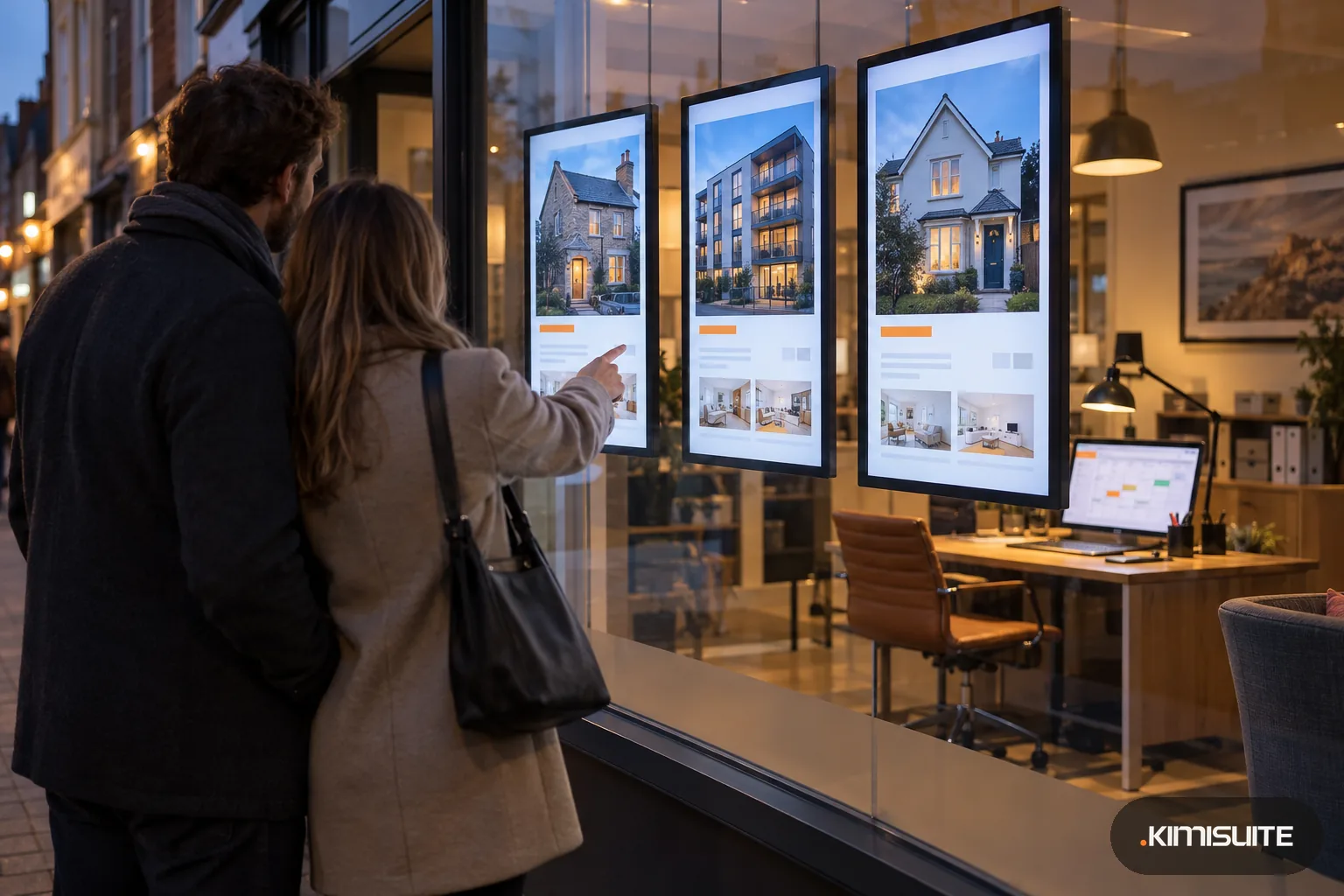
What it looks like in practice
09:30: a new instruction comes in
The photographer's pictures of the three-bed semi arrive. You crop each picture to the tall format as it uploads and add the listing to the window loop before the first viewing of the day.
13:00: an offer is accepted
You swap the listing card for one that says Under offer and publish. The window shows the change within about a minute, so nobody walks in asking about a house you can no longer show.
18:30: the office closes, the window stays open
An evening campaign takes over with the best listings, your valuation offer and your phone number. Commuters walking home browse the window when they finally have time.
Saturday: lettings get their own screen
The screen by the door shows rentals only. You changed its content for that one screen, while the other two keep following the branch campaign.
An estate agent window display does its best work after you have gone home, when people walk the high street and stop to look at what is for sale. Showroom TV turns portrait screens behind your glass into a window you control from the office. Upload the property photos or finished listing cards, crop them to the screen as you upload, and arrange them in a playlist with the seconds each one stays up. When a property goes under offer or is let, you change one slide and publish, and the window follows within about a minute. The playlists and layouts let you add a ticker line under the main picture for Just sold and New this week.
Agencies with several branches keep every window in one KIMISUITE workspace. Each branch is a location, each screen can follow the branch campaign or play its own list, and campaigns and schedules decide what runs by day and hour: new listings in the morning, your valuation offer in the evening, open-house dates at the weekend. Showroom TV runs in any modern browser or as an Android TV app, so you choose the screens that suit your window. You add listings yourself; there is no automatic import from property portals.
What you get
Built for portrait screens in a row
Pair each screen as portrait, use a portrait layout, and crop every photo to the format on upload. Three screens can play one shared loop or three different ones.
Update the estate agent window display in a minute
Swap a listing for its Under offer or Let version and publish. Screens on the campaign show the new card within a minute, long before anyone rings to ask.
An evening window for commuters
Run a weekly evening campaign with your strongest listings and your valuation offer. The window keeps selling after the last viewing of the day.
Ticker lines for quick news
Add a ticker under the main picture and type one message per line: Just sold on Elm Road, Open house Saturday 11 to 1, Book a valuation this month.
One screen for lettings
Change content on a single screen to give it its own playlist, for example rentals only. It stays that way above all campaigns until you hand it back.
Every branch in one workspace
Each office is a location with its own address and time zone. Send the spring campaign to every branch at once and leave the lettings screens out.
Put this week's listings in the window
Open Showroom TV, upload the photos of your newest instructions, build a portrait playlist and pair the first window screen. Your window shows the current stock tonight.
Paper cards against screens
Working out what a sale earns your branch? The real estate commission calculator does the sum for any fee rate.
- A property goes under offer
- paper: reprint and walk to the window; screen: change one slide and publish
- Evening and weekend browsing
- an evening campaign keeps the window changing after closing
- Software
- a monthly workspace price; Start covers three screens, Business forty
- The screens
- yours: any display with a modern browser, or an Android TV or Google TV device
How to get started
Pair the window screens
Open tv.kimisuite.com on each screen or install the Android TV app, type the eight-character codes into Showroom TV, and set every screen to portrait.
Add your listings
Upload property photos or finished listing cards, crop them to the portrait format and put them in a playlist. Set how many seconds each listing stays and the transition.
Plan day and evening
Create a branch campaign that always runs, and an evening campaign from closing time with a higher priority. Add a ticker zone for your news lines.
Keep the window current
When a property is under offer, let or sold, replace its slide and publish. The version history keeps last week's window if you need it back.
Pricing
Showroom TV starts at a fixed monthly price (see pricing) for your agency's workspace, not per negotiator. Start covers three screens at one office, enough for a window with three portrait screens.
A second branch, screen groups for sales and lettings, and your own layouts come with Grow, and extension packs add screens and offices as the agency grows.
Is it the right fit?
A good fit if
- Small independent estate and letting agents with one window and two to four portrait screens
- Independent agents with a second branch whose window they want to run from the same desk
- Independent agents replacing printed window cards that go out of date
- New-homes sales offices that show a development in rotation
Not the right fit if
- Agencies that want listings imported automatically from a property portal or CRM
- Agencies with nobody to update the cards; the window is only as current as the slides you publish
- Agents looking to buy window screens or hanging systems; Showroom TV is the software
- Offices that need touch screens for passers-by to search listings
- Agencies that want video tours of each property in the window: the screens have been confirmed with photo and text slides, not yet with video
Frequently asked questions
How does an estate agent window display work with Showroom TV?
Do my listings update automatically from the portals?
Can three portrait screens show different properties?
What should the window show after the office closes?
Can I show lettings and sales separately?
We have five branches. Can head office run all windows?
What screens do I need in the window?
Read next
- Related solutionsShop window digital signage that changes with your opening hoursTurn the screen in your window into a salesperson that never goes home. New arrivals in the morning, the sale on Saturday, opening hours and your phone number after closing time, all planned once.
- Related solutionsWaiting room TV that tells patients what they actually want to knowSwap the muted news channel for your own practice: who is on the team, which services you offer, when you are closed over the holidays and a short note when the morning runs late.
- Related solutionsHotel digital signage for your lobby, event floor and breakfast roomWelcome today's guests, point them to the spa and show the morning's breakfast on the TVs you already have. Change a line at the front desk and every screen follows within about a minute.
- From the blogShowroom TV: Turn Any Android TV Into a Managed ScreenShowroom TV is now available in KIMISUITE: pair an Android TV with an eight-digit code, build playlists and layouts, plan campaigns by time...
Ready when you are
Set it up in your own workspace and see how it works with your data.
- Cancel anytime
- No long-term contract
- 14 days free