Showroom TV is now available in KIMISUITE. It turns an Android TV or Google TV into a screen you manage from your workspace: you decide what it shows, where and when, and you can see what actually played.
Many businesses with a screen in the window, the lobby or the waiting room run it from a USB stick. Someone copies a slideshow onto the stick, plugs it into the TV and hopes nobody unplugs it. Changing the breakfast offer means walking to the TV. Knowing whether the screen is even on means walking past it. Showroom TV replaces that walk with a few clicks.
Pair a TV with an eight-digit code
You install the Showroom TV app on the Android TV or Google TV device. The app shows an eight-digit pairing code. In your workspace you type that code, give the screen a name such as "Lobby - Reception TV", assign it to a location and choose landscape or portrait. From then on, the TV fetches its programme by itself.
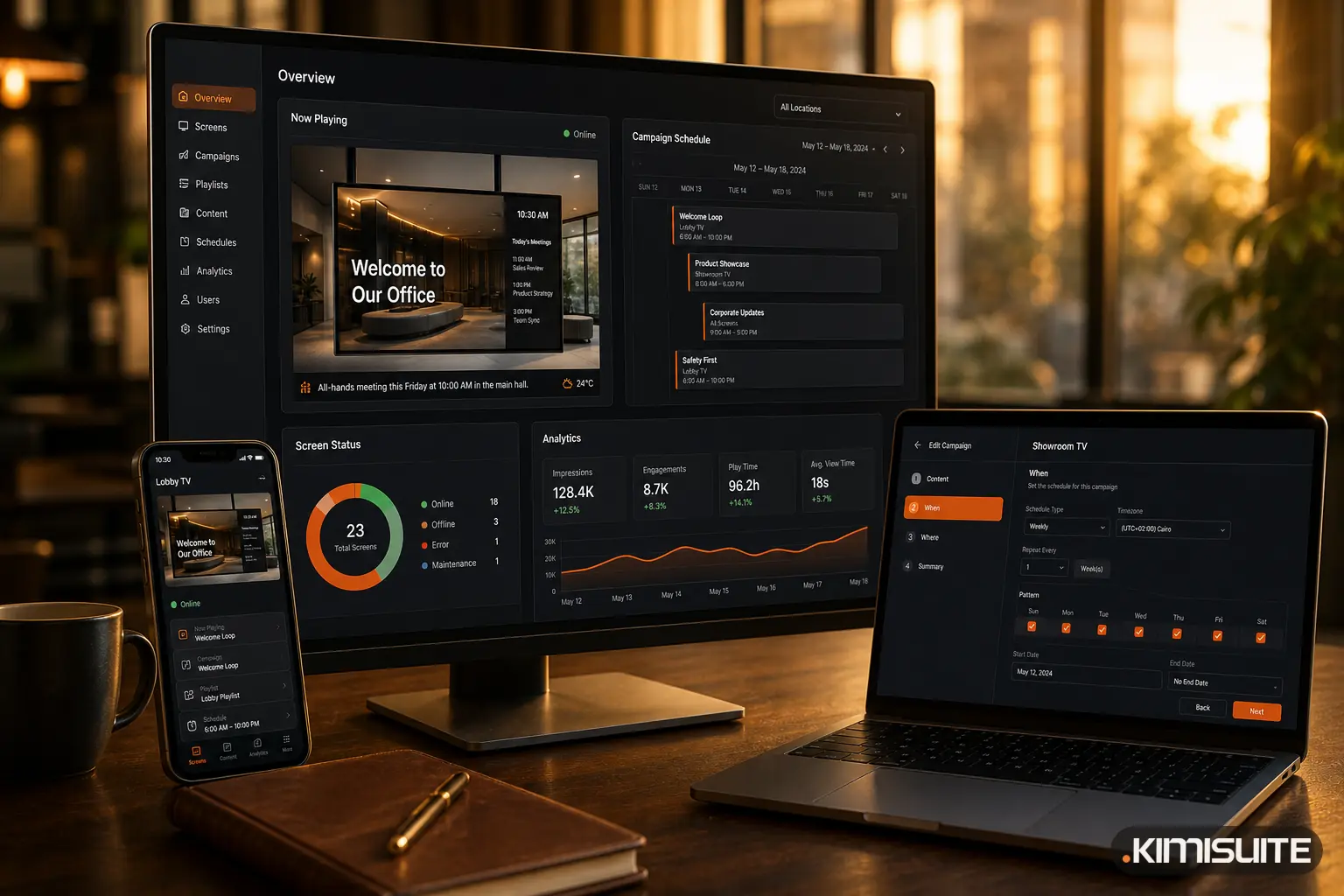
The screen list shows every paired TV with its status, location, last sync and what it is playing right now. If a screen stops reporting, it appears under "Screens needing attention" on the dashboard, with the time it was last seen.
Playlists: your pictures in a loop
A playlist is a loop of slides from your media library. For each slide you set how long it stays, how it changes to the next one (fade, slide, zoom or none) and whether it fits inside the screen or fills it. The order is changed by drag and drop.
Playlists have a draft and a published version. You can work on the next version during the day while the screens keep playing the current one, because screens only ever play what has been published. If a change was a mistake, the version history lets you restore an earlier one.
Layouts: more than one thing on the screen
A layout splits the screen into zones. The presets cover the common cases: full screen, main area with a ticker, main area with a sidebar, sidebar with clock and ticker, two halves, three columns. You can also draw your own zones and position them to the percent.
Two zone types are especially practical:
- Ticker. A scrolling line of text at the bottom, one message per line, with your speed, size and colours. Useful for today's offer or opening hours.
- Clock. Time and optionally the date, in one of three designs, shown in the time of the screen's location.
The same layout can be filled with different playlists by different campaigns, so one lobby design can serve the morning and the evening.
Campaigns: what plays where and when
A campaign connects content with screens and time. The editor takes four steps: content, where, when, review.
| Step | What you decide |
|---|---|
| Content | Which layout, and which playlist goes into each zone |
| Where | All screens, or selected screens, groups or locations, with exclusions |
| When | Always, a date range, a weekly pattern (for example weekdays 06:30 to 10:30), or several rules combined |
| Review | A summary and the number of screens it will play on |
When two campaigns want the same screen, the one with the higher priority wins. The schedule view shows each screen's day as a timeline, and a list called "Not on air, and why" explains every campaign that is not playing at the moment. On a single screen, "Why this?" shows which campaign is playing and why the others are not.
For situations that cannot wait, the Business plan adds an emergency campaign. While it is active, it overrides everything else on the screens it targets, including content set for a single screen.
Proof of play
The reports show what actually ran: total plays, airtime and screens reporting, summarised per day and per screen, for the last 7, 30 or 90 days or a range you choose. If you rent out screen time to other businesses, that is the record you can show them. It counts what played, not who looked at it.
Templates to start from
To avoid starting from an empty screen, Showroom TV offers 19 templates for eight industries, among them a menu board for restaurants, a lobby welcome for hotels, a vehicle showcase for car dealers, a waiting-room screen for practices and a class schedule for gyms. Applying a template creates a layout, playlists and a campaign draft that you then fill with your own pictures.
Who it is for
Showroom TV is built for screens in public spaces: a restaurant window, a hotel lobby, a showroom floor, a practice waiting room, a shop counter. For a restaurant, the screen in the window does for passers-by what the website does online, where a menu widget can replace the PDF link.
Try it
Showroom TV is available as an app in your KIMISUITE workspace, billed per workspace, not per user. Pair your first TV, publish a playlist and plan your first campaign. Cancel anytime · No minimum term · 14 days free.