A passkey is a way to sign in without a password. Your phone, computer or security key holds a secret key for that one website, and you confirm it with your fingerprint, your face or your device PIN. Passkeys for business accounts matter because they cannot be phished or reused on a fake site, and there is no password on the server that a data breach could expose.
How a passkey works
A passkey is built on public key cryptography, a method where a matching pair of keys does the work instead of a shared secret.
- When you create a passkey, your device makes a key pair for that one website: a private key and a public key.
- The private key stays on your device or in your password manager. The website stores only the public key.
- When you sign in, the website sends a challenge. Your device asks you to confirm with your fingerprint, face or PIN and then signs the challenge with the private key.
- The website checks the signature with the public key it stored. If it matches, you are in.
Google's developer documentation puts the server side plainly: only the public key is stored by the site, and that alone is useless to an attacker. Apple's support page says the server never learns what the private key is. The fingerprint or face scan never leaves your device either; it only releases the key on the device itself. Microsoft states that biometric data used with Windows Hello stays on the device.
The FIDO Alliance, the industry group behind the standard, defines a passkey as a sign-in credential based on FIDO standards. In the browser, the standard is called WebAuthn.
Why passkeys stop phishing
Phishing means tricking someone into typing a password or a code on a fake page that looks like the real one. A password works anywhere it is typed, so a convincing copy of a login page is enough to steal it.
A passkey is tied to the exact web address it was created for. Microsoft explains that if you land on a lookalike site, your device will not offer the passkey to it, because the domain does not match. The browser and the operating system do the checking, not the person, so a busy employee cannot make the mistake.
The US National Institute of Standards and Technology describes this in its digital identity guideline, NIST SP 800-63B-4. It counts cryptographic sign-in methods that bind the login to the real site name as phishing-resistant. Methods where a person types a code, such as one-time codes and codes sent by text message, are not phishing-resistant, because a fake page can pass the code on to the real site. A typed password has the same weakness.
All your apps in one workspace
Create your workspace for free today and add an app whenever your business needs one.
Synced and device-bound passkeys
There are two kinds of passkeys, and the difference matters when a phone is lost or replaced.
| Synced passkey | Device-bound passkey | |
|---|---|---|
| Where it lives | In a password manager that syncs across your devices | On one device or one hardware security key |
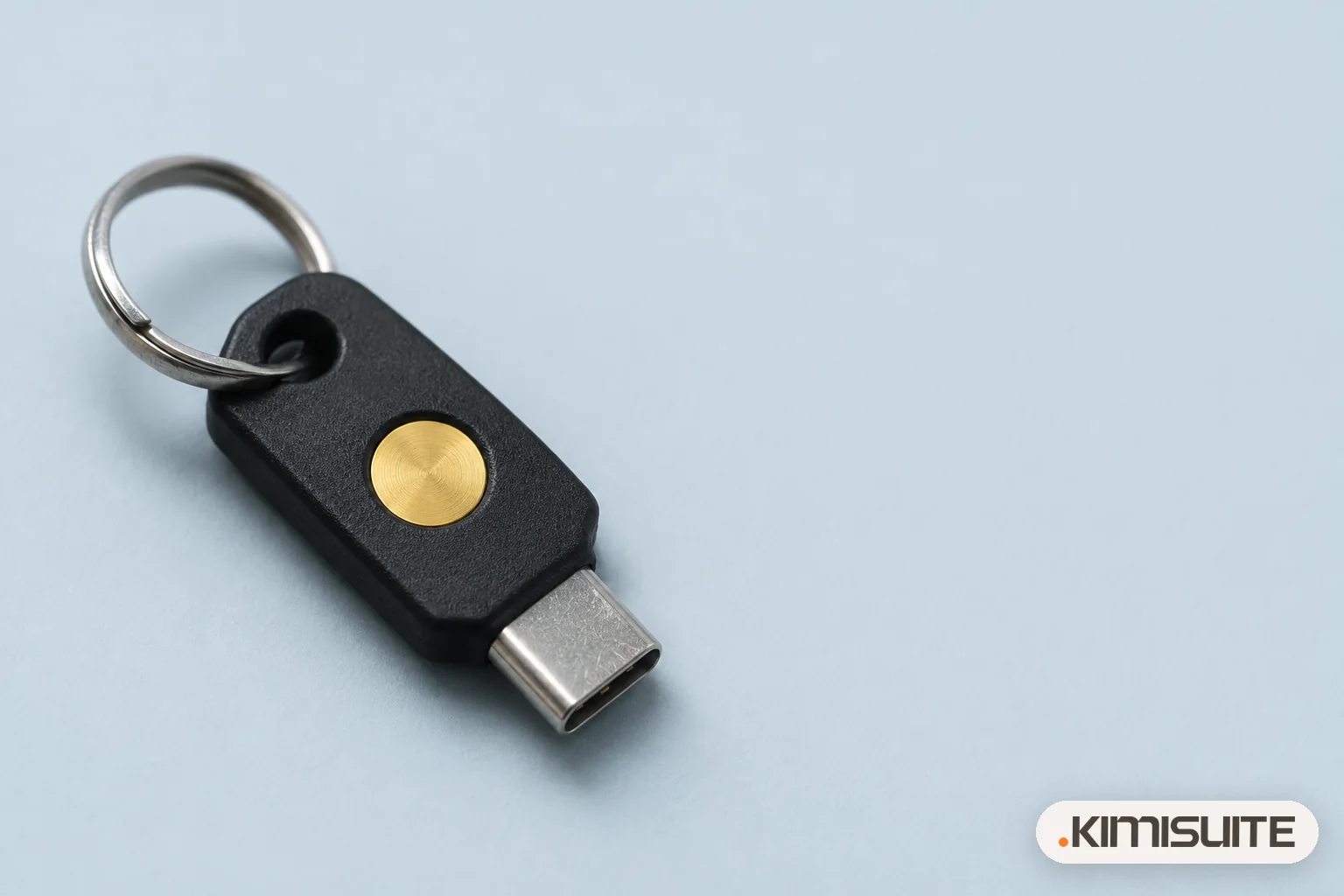
| Examples | iCloud Keychain, Google Password Manager, Microsoft Password Manager | A security key on a key ring, some company laptops |
| New phone | The passkey is already there after you sign in to the password manager | You create a new passkey on the new device |
| Good for | Most staff accounts | Accounts with the highest risk |
Apple says passkeys sync across a user's devices through iCloud Keychain, which is end-to-end encrypted. Google says Google Password Manager syncs passkeys between Android devices and Chrome. Microsoft recommends saving passkeys to a synced credential manager where possible, and creating passkeys on other devices as a backup if you keep one only on a single device.
You can also use a passkey from a phone to sign in on a nearby computer. The computer shows a QR code, you scan it with the phone and confirm there, and the phone and computer check that they are close to each other.
What changes for a business
For a hotel, a dealership, a practice or an agency, the gains are practical:
- No password reuse. Staff cannot use the same password for the booking system and their private email, because there is no password to reuse.
- No phishing of logins. A fake "your account is locked" page gets nothing it can use.
- Faster sign-in. A fingerprint at the front desk takes a second, and nobody types a long password on a phone.
- Fewer resets. Forgotten passwords stop being a daily support task once people use passkeys.
- Nothing to steal on the server. If a service is breached, the stored public keys cannot be used to sign in anywhere.
There are limits to plan for:
- Shared devices. A passkey belongs to a person. A shared front desk computer should not hold one person's passkey in a shared password manager profile.
- Leavers. When someone leaves, remove their access to the business account itself. A passkey on their private phone becomes useless once the account is closed or their passkey is removed.
- Lost phones. With synced passkeys, the person signs in to the password manager on the new phone. Keep a second way in, such as the password plus a second factor, until everyone has passkeys on more than one device.
How to introduce passkeys in your team
- Start with the accounts that matter most: email, banking, the booking or sales system, and the admin accounts of your tools.
- Check what each service supports. Many services offer passkeys in their security settings; the option is often called "passkey" or "sign in with fingerprint or face".
- Ask each person to add a passkey on two devices, for example a phone and a laptop, or use a synced password manager.
- Keep the password and a second factor as a fallback while people get used to it. Passkeys are usually offered next to passwords, not as a forced switch.
- Write down who uses which device, so you know what to remove when a device is lost or a person leaves.
Who can see what inside your systems is a separate question from how people sign in. We covered access and permissions in who can access your business data.
Where KIMISUITE fits
KIMISUITE lets you sign in with a passkey. On the sign-in page, "Sign in with passkey" uses the passkey on your phone or computer, and the button only shows when your browser supports it. After you sign in with your password, KIMISUITE offers to add a passkey. Under Settings, Security you see your passkeys and can add, rename or remove them.
Passkeys are optional, and your password keeps working as a fallback. If you have two-factor sign-in with an authenticator app turned on, a passkey sign-in that you confirm with your fingerprint, face or device PIN does not ask for the extra code, because the passkey already covers both steps. One login gives you every app in your workspace.