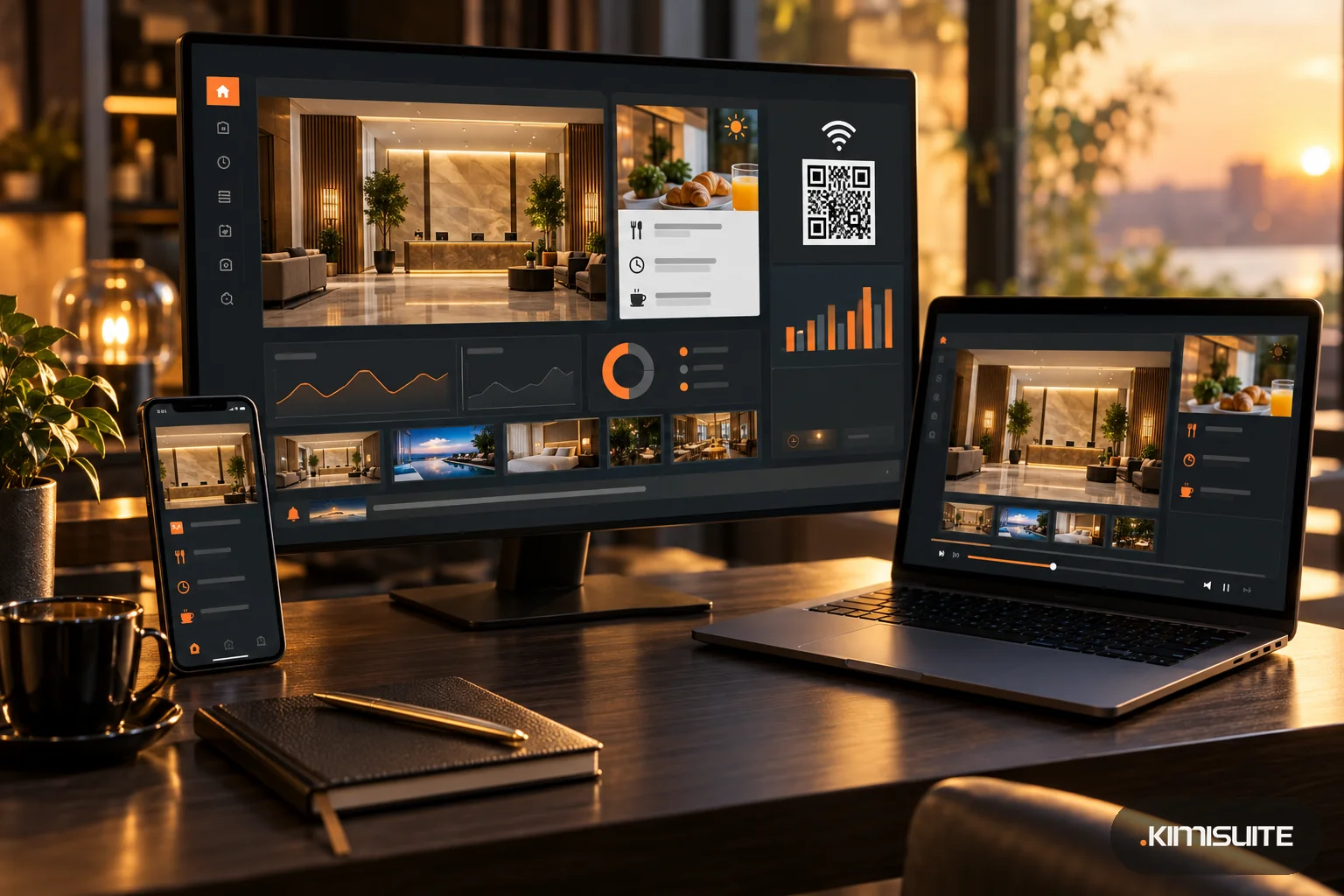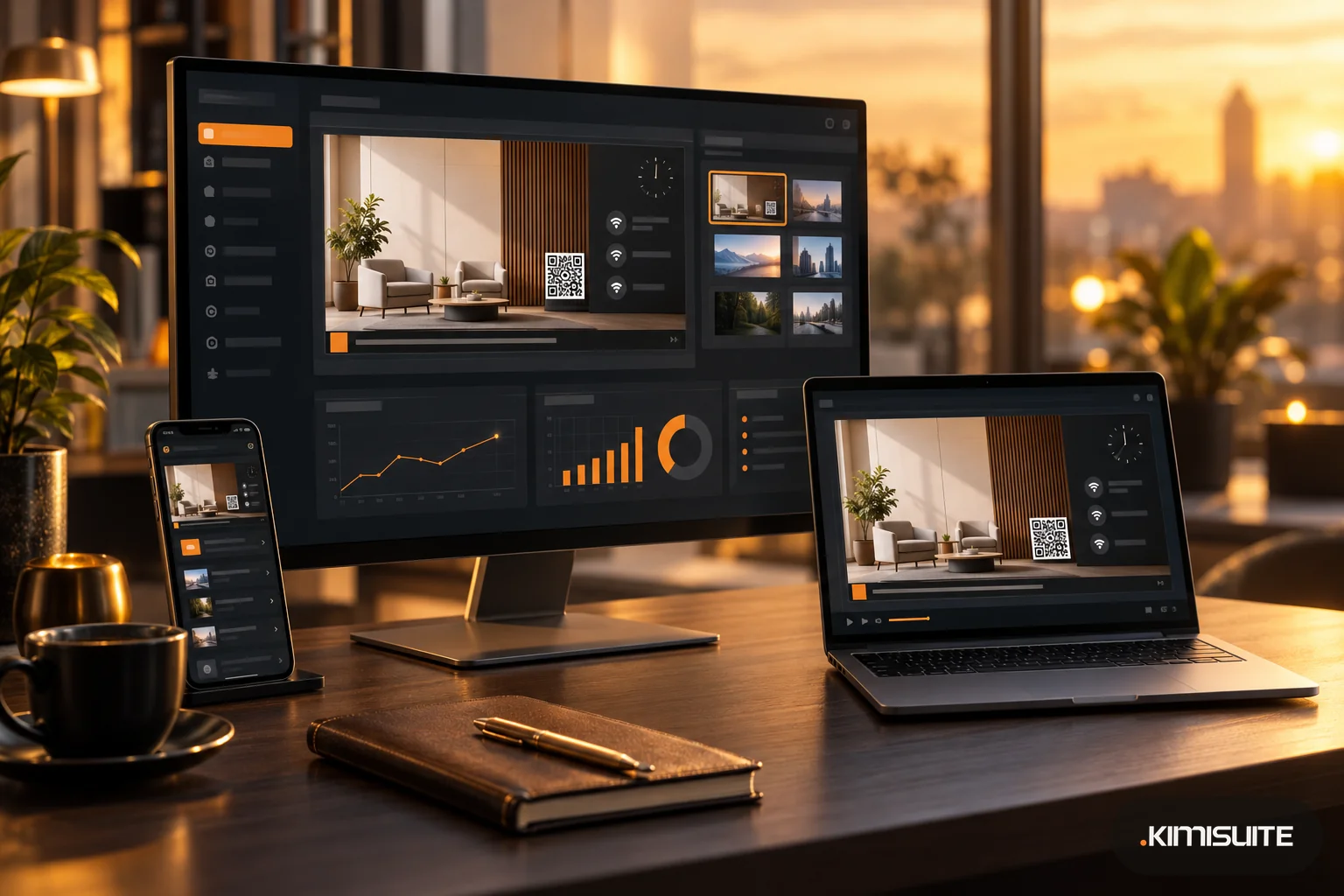
A waiting room TV is a screen in a practice, clinic, salon or service area that shows useful information to people while they wait, instead of a news channel or an empty wall. Done well, it answers the questions people would otherwise bring to the front desk, can make the wait feel shorter and explains the services you offer. Done badly, it is one more source of noise in a room where people are already tense.
Here are waiting room TV ideas that work, what to avoid, and how to set up a screen without a design agency.
What people in a waiting room want to know
Think about what they look up from their phone for:
- Is it my turn soon? A general note about waiting times, not names.
- How do I get on the Wi-Fi?
- What happens next? How a treatment or service works, what to bring, what to expect afterwards.
- When are you open, and how do I book the next appointment?
- Anything new? Opening hours over the holidays, a new service, a team change.
A screen that answers these takes pressure off the reception desk.
12 waiting room TV ideas
- A calm welcome slide with your name, logo and today's date.
- Wi-Fi details with a QR code, so nobody has to ask at the desk.
- Opening hours and holiday closures, scheduled to appear in the weeks before.
- How to book the next appointment: your booking page address and a QR code.
- What a treatment involves, step by step, in plain language. Explainers hold attention better than ads.
- Preparation and aftercare tips that apply to everyone, such as "bring your previous X-rays" or "avoid hot water for 24 hours after a facial".
- Introduce the team: photos and first names of the people working today.
- A short note when you are running late, kept general: "We are running about 15 minutes behind today. Thank you for your patience."
- Payment and insurance information: which cards you accept, what to bring.
- Seasonal reminders, such as a check-up before summer, or tire changes in a car service waiting area.
- A clock, so people do not keep checking their phones and the time on screen matches the time of their appointment.
- A service or emergency notice: a closed entrance, a fire drill, an elevator out of order.
What to avoid
- Names of patients or clients. Never show who is waiting or who is next. Use numbers or general notes.
- Sound. Most waiting rooms are better without it. Captions or text slides are enough.
- Health or results claims. Explain what a treatment is; do not promise outcomes.
- Too much text. One message per slide, large type, readable from the furthest chair.
- The same three slides for months. Rotate content with the season so people still look.
A simple content plan
- Every day: welcome, Wi-Fi, clock, opening hours, how to book.
- Rotating weekly: two or three treatment explainers, one team slide.
- Scheduled: holiday closures in the weeks before, seasonal reminders, special notices.
The Wi-Fi QR code generator makes the Wi-Fi code and the QR code generator the one for your booking page, both free. Download both as PNG and scan them once with a phone before they go on screen.
How to set it up with Showroom TV
Showroom TV runs the screens from your KIMISUITE workspace. Any TV with a browser can be the screen, through the web player in a smart TV browser, a stick or a PC, or through the Android TV app. You pair the TV with an 8-character code it shows, and from then on it plays what you schedule.
Start from a template. The template gallery includes two medical templates, Waiting room and Treatment explainers, plus general ones such as Reception and Emergency notice. Each template sets up a layout, playlists and a draft campaign, so you replace sample content instead of starting from an empty screen. See the signage templates.
Images, videos and text slides. Upload photos, videos and your QR codes to the media library, with cropping to the screen format on upload. Text slides take your text, colors, size and alignment, which is enough for opening hours or a delay note.
A layout with a clock and a message line. Layouts can combine the main playlist with a clock in your location's time zone and a ticker that runs one message per line.
Schedules instead of manual changes. Campaigns play always, in a date range or on a weekly pattern, and single slides can have their own dates and weekdays. Holiday closure notices appear and disappear on their own, and when you edit an active campaign, the TV picks up the change without anyone touching it, in testing within a minute.
Emergency notices. Mark a campaign as emergency and it takes over every screen it targets, ahead of the normal schedule.
Several rooms or locations. Screens can be grouped and placed at locations, and a campaign can target all screens, a group or a location. Each screen can be muted or have its volume set.
See that it is running. The dashboard lists screens that need attention, such as a TV that stopped reporting, with when it was last seen.
FAQ
What should I show on a waiting room TV?
Practical information people would ask for: Wi-Fi, opening hours, how to book, how treatments work, aftercare tips, the team and general notes on waiting times.
Should a waiting room TV have sound?
Usually not. Text and captioned content work better in a shared, quiet room.
Can I make waiting room TV content myself?
Yes. Start from a template, add text slides and your own photos, and schedule the content. No designer is needed for a clear, simple screen.
Is it a good idea to show who is next on the waiting room TV?
No. Names of patients or clients do not belong on a public screen. Use general notes or numbers instead.