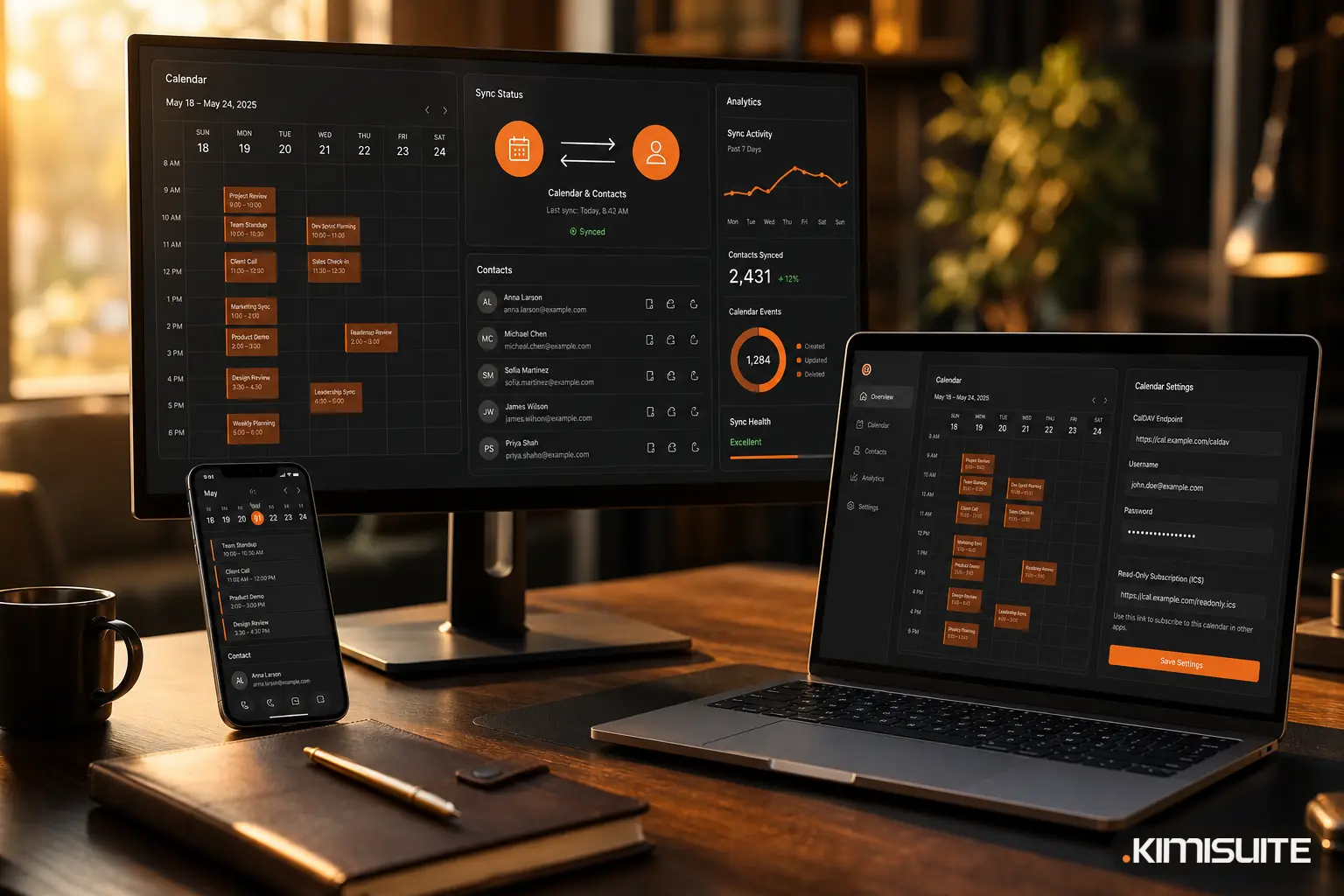
CalDAV and CardDAV are open standards that let calendar and contacts apps on different devices read and write the same data on a server, so an appointment or a phone number changed on your phone appears everywhere else, and the other way round.
That is the whole idea. The rest of this post explains how the two standards differ from a calendar subscription link, what you need on an iPhone, an Android phone or a desktop, and where the usual problems come from.
What CalDAV and CardDAV are
Both are extensions of WebDAV, the protocol that lets a program read and write files on a web server.
| CalDAV | CardDAV | |
|---|---|---|
| For | Calendars: appointments, recurring events, reminders | Address books: names, numbers, emails, addresses |
| Data format | iCalendar (.ics) | vCard (.vcf) |
| Standard | RFC 4791 (2007) | RFC 6352 (2011) |
| Direction | Two-way: read and write | Two-way: read and write |
| What you enter on the device | Server address, username, password | Server address, username, password |
Because they are open standards, you are not tied to one vendor. The same account works in Apple Calendar, Thunderbird or a sync app on Android, and it keeps working if you change phones.
Two-way sync vs subscription link
The most common confusion is between a CalDAV account and a calendar subscription. They look similar on the phone, but they do very different things.
| CalDAV account | Subscription link (iCal URL) | |
|---|---|---|
| Direction | Two-way | One-way, read-only |
| Can you create or edit appointments on the device? | Yes | No |
| How it is added | As an account, with a password | As a URL, usually without a password |
| How fresh | Changes sync within minutes, depending on the device's sync interval | The receiving program decides when to refresh; with some services this can take hours |
| Security | Protected by your login | Anyone who has the link can read the calendar |
| Typical use | Your own working calendar on your phone | Showing a calendar in Google Calendar or Outlook, public holidays, a colleague's schedule |
Contacts have no common equivalent of a subscription link. For an address book, CardDAV is the standard way to sync.
Why Google Calendar and Outlook are a special case
Many people expect to add any calendar to their Google or Outlook account as a full account. Neither the Google Calendar web app nor Outlook lets you connect an external CalDAV server that way. What both do support is subscribing to a calendar by URL. That means:
- Your appointments appear in Google Calendar or Outlook
- You cannot change them there; you edit in the source calendar
- The refresh interval is set by Google or Microsoft, not by you
The phone is different: once a CalDAV account is set up on the device itself (see below), the calendar shows up in the calendar apps on that phone and can be edited there.
How to set it up
You need three details from your calendar or contacts service: the server address (endpoint), your username and a password. Menu names change between software versions, so treat these as orientation, not exact paths.
iPhone and iPad
iOS supports both standards without extra apps.
- Open Settings and go to the account settings of Calendar (or Contacts).
- Add an account of type Other.
- Choose Add CalDAV Account for the calendar or Add CardDAV Account for contacts.
- Enter server, username and password and save.
The calendar then appears in the Calendar app, the address book in Contacts.
Android
Android has no built-in CalDAV or CardDAV support. You install a sync app, commonly DAVx5, add an account with the server address, username and password, and choose which calendars and address books to sync. After that, they show up in the calendar and contacts apps already on your phone.
Mac and desktop
- Apple Calendar and Contacts on the Mac accept CalDAV and CardDAV accounts in their account settings.
- Thunderbird can add a CalDAV calendar and a CardDAV address book directly.
What sync is not
- Not a backup. A two-way sync also syncs deletions. Delete an appointment on your phone and it is gone on the server too.
- Not a merge of everything. Your phone may hold several accounts: iCloud, Google, your company. New entries go to whichever account is set as the default. Check this setting if appointments "disappear".
- Not sharing by itself. Sync puts your calendar on your devices. Who else sees it is decided by the service, not by the protocol.
Common problems
| Symptom | Likely cause |
|---|---|
| New appointments from the phone do not arrive | They were saved to a different account; check the default calendar |
| Changes appear only after a long delay | The device's fetch interval, or a subscription link instead of a CalDAV account |
| Login fails | Wrong server address or password; some services use a separate sync password |
| Can see but not edit | You added a subscription link, not an account |
In KIMISUITE
Calendar and Contacts are free apps in every KIMISUITE workspace, and both speak these standards.
- Calendar shows the CalDAV endpoint, username and password under Calendar Settings. Changes run in both directions between KIMISUITE, your phone, Apple Calendar and Thunderbird. For Google Calendar and Outlook you create a read-only subscription link; KIMISUITE warns that anyone with the link can read the calendar, and you can replace or remove the link at any time. You can also subscribe into KIMISUITE, for example to a public holiday calendar by its iCal address.
- Contacts shows the CardDAV details under Contact Sync, with short instructions for iPhone/iPad and for Android with DAVx5. The shared address book of your workspace then lands in your phone's contacts app, and changes run both ways.
For an overview of what the four free apps do together, read Calendar, Contacts, Notes and ToDo: the free core of every workspace.
Get started
See the views, the sync settings and the subscription link on the KIMISUITE Calendar app page. Create your free workspace and connect your phone in a few minutes.