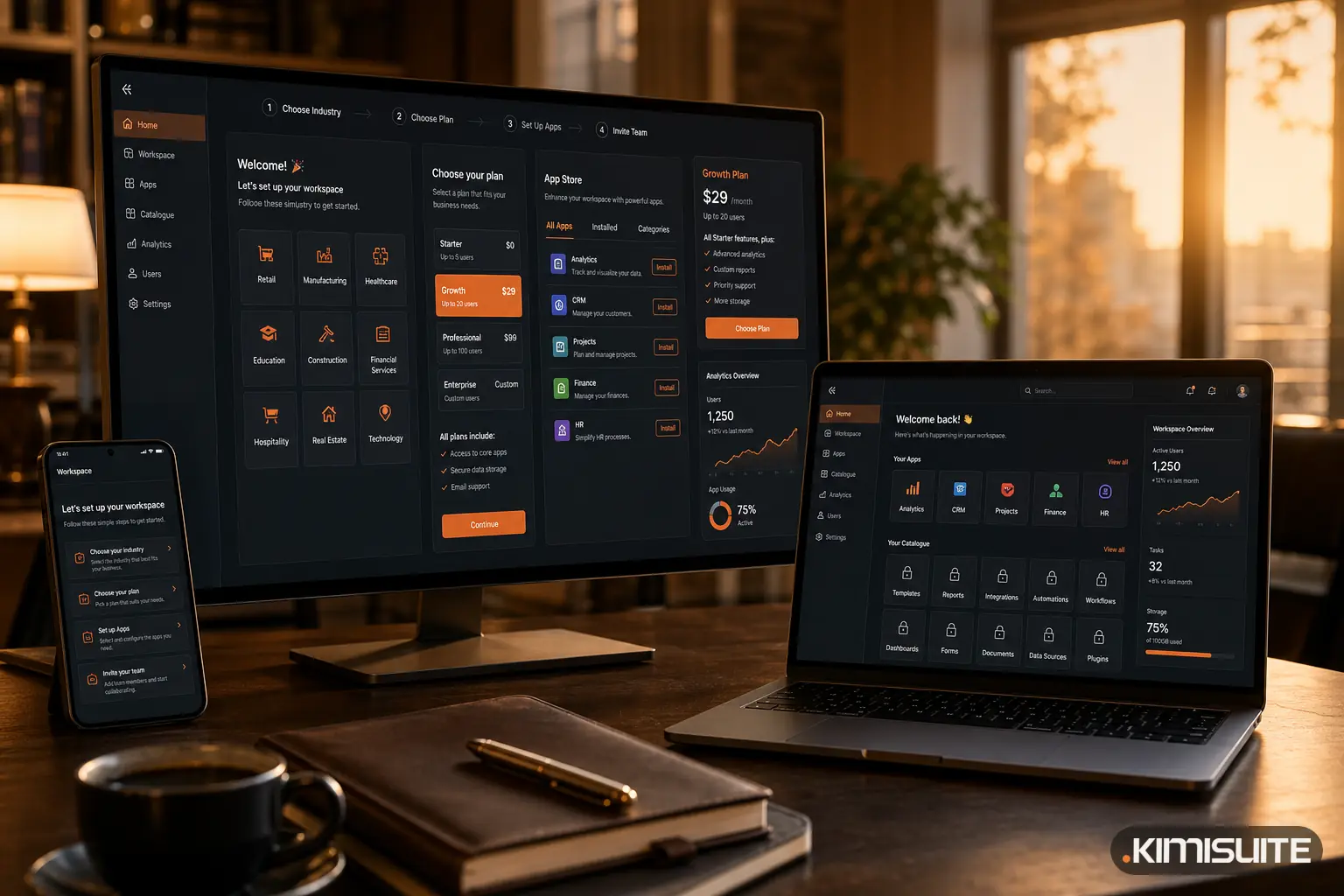
Since 22 September, a new KIMISUITE account no longer starts on an empty screen. If you sign up for a specific app, you land on that app. If you sign up without one, the workspace shows you every app it can hold, starting with the ones that fit your industry.
Why we changed it
Until now, every new account took the same route: register, confirm your email, answer a few questions, then arrive on a home screen with the free apps and not much else. Someone who came for Restaurant Hub or CRM Business Hub had to find the App Store, search for the app and start from there. Many people stopped somewhere along the way. The new flow removes those steps.
If you came for a specific app
When you start from a link that names an app, for example from an app's page in the KIMISUITE App Store, the app travels with you through the sign-up:
- The register page shows your app first, marked as your pick.
- After you confirm your email, you do not land on the home screen but directly on that app's page in the App Store, with the plan selection already open.
- Choose a plan and the app goes into your cart. From there you either keep browsing and add more apps, or go to checkout.
- The trial runs per app: Cancel anytime · No minimum term · 14 days free.
After checkout, or if you close the dialog, you arrive in your workspace as usual.
If you are still looking around
If you register without a specific app, KIMISUITE asks once, on one short welcome screen, for two things: your name and your industry. There are nine to choose from:
| Hotels | Restaurants | Dealerships |
| Retail | Trades | Beauty |
| Health | Agencies | Everything else |
You can skip the question. Either way, you are asked only once per account.
A home screen that shows what is possible
The biggest visible change is the home screen of a new workspace. Instead of an almost empty screen, it now shows the paid apps as tiles with a padlock:
- Your industry first. The apps that matter most for your industry are at the top, followed by the rest of the catalogue.
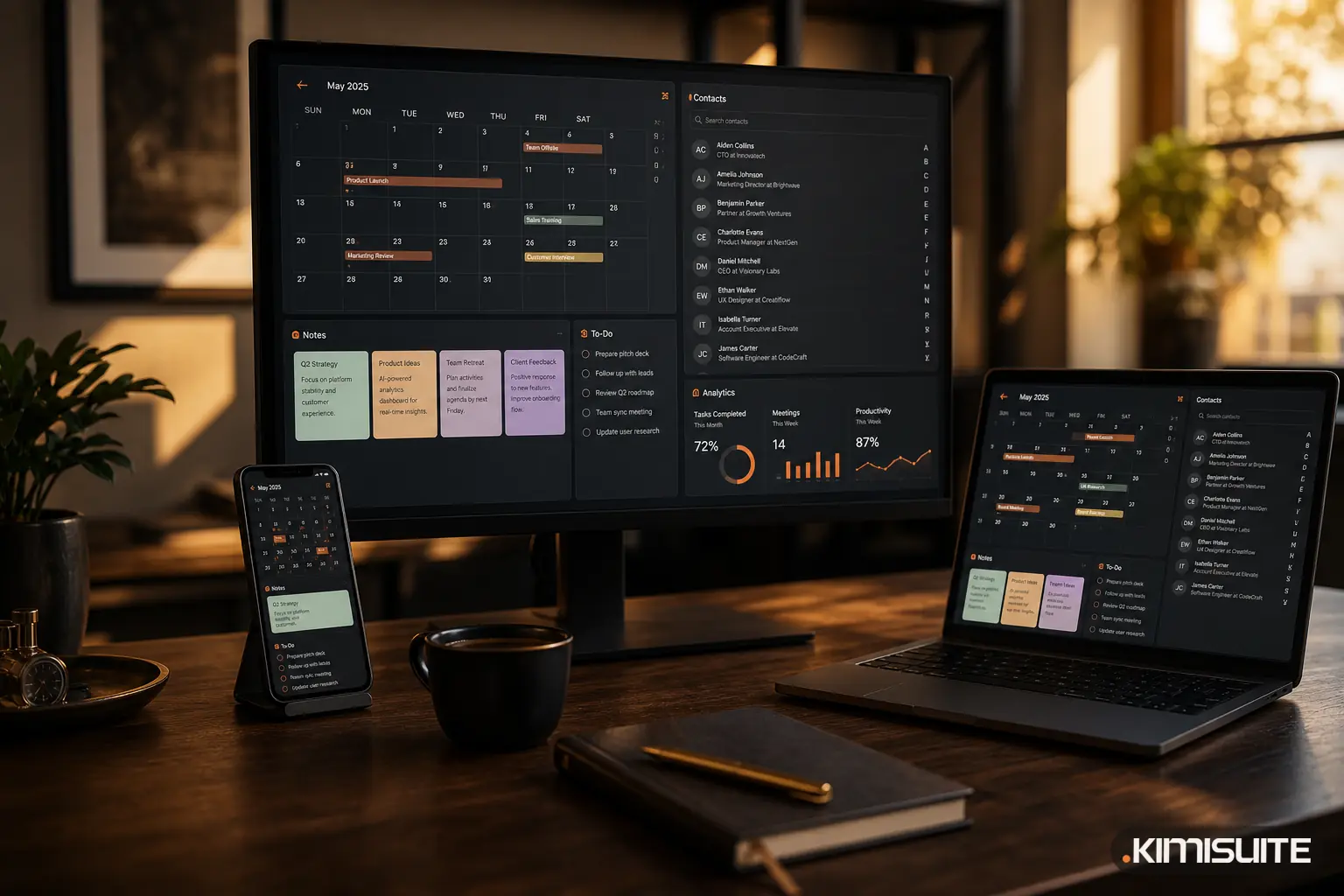
- Free apps ready to use. Calendar, Contacts, Notes and ToDo are there without a padlock, together with the clock and weather widgets.
- One tap to the details. Tapping a locked tile opens that app's page in the App Store, with its plans and the trial.
- Tiles you do not need can be removed from the home screen.
As soon as you subscribe to your first paid app, the locked tiles disappear. From then on, the home screen shows only the apps you actually use, arranged the way you like.
Changes in the App Store
- Clear buttons. An app page shows whether you can start a trial, subscribe, or, if you already use the app, change your plan.
- A cart. After choosing a plan you decide whether to add another app or go to checkout. Add-ons are chosen in the cart.
- A tidier list of all KIMISUITE apps, with one button per app to view its details.
What stays the same
- The workspace is free, and the free apps are included from the start.
- 10 members are included as soon as you subscribe to your first paid app, and billing is per workspace, not per user.
- Only the workspace owner subscribes. Team members can request an app; the owner decides.
If something is unclear after sign-up, trettly answers questions about workspace plans and app setup. We described what it can answer in What trettly can answer now.
Try it
Pick the app you need from the KIMISUITE App Store overview, or create your free workspace and let the home screen show you what fits your business.