Document Sign is now available in KIMISUITE. It does one job: you upload a finished document, say who has to sign and where, and get back a sealed PDF that shows who signed, when, and that nothing changed afterwards.
It is a paid app you add to your workspace, like CRM Business Hub or Service Manager. Here is what it does, and just as clearly, what it does not.
What it is for
Most small businesses do not write contracts in a signing tool. The rental agreement, the offer letter, the supplier contract or the consent form already exists as a Word file or a PDF. What is missing is the part after that: getting a signature without printing, scanning and chasing people by email.
Document Sign starts at exactly that point. It has no document editor and no templates. You bring the finished file, and the app handles the signing.
How it works, in three steps
1. Upload. Drop in a PDF, or a Word, OpenDocument or RTF file, which is converted to PDF. Files can be up to 25 MB. You give it a title (recipients see it in the email) and, if you like, assign it to a project.
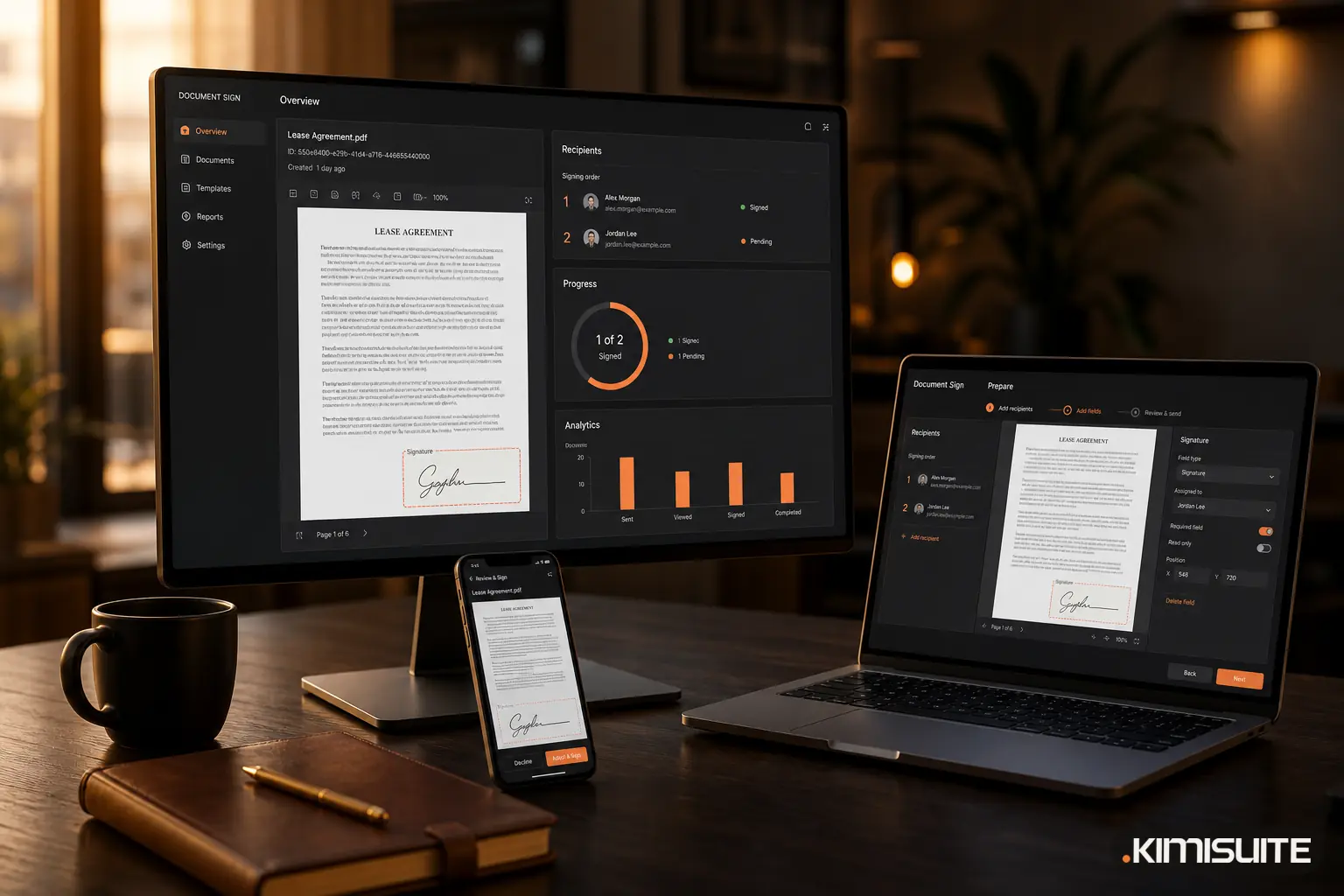
2. Prepare. Add recipients by name and email and decide their role: signs or gets a copy. Then place fields on the pages: signature, initials, full name, email, date, text and checkbox. Text fields and checkboxes can be marked as required, and the date fills itself in when the recipient signs. If the order matters, switch on sign in order, and the next signer is only invited once the previous one has signed. A short checklist tells you when everything is in place.
3. Send. Add a message, an optional deadline and automatic reminders, then send. Each recipient gets a link.
What the signer sees
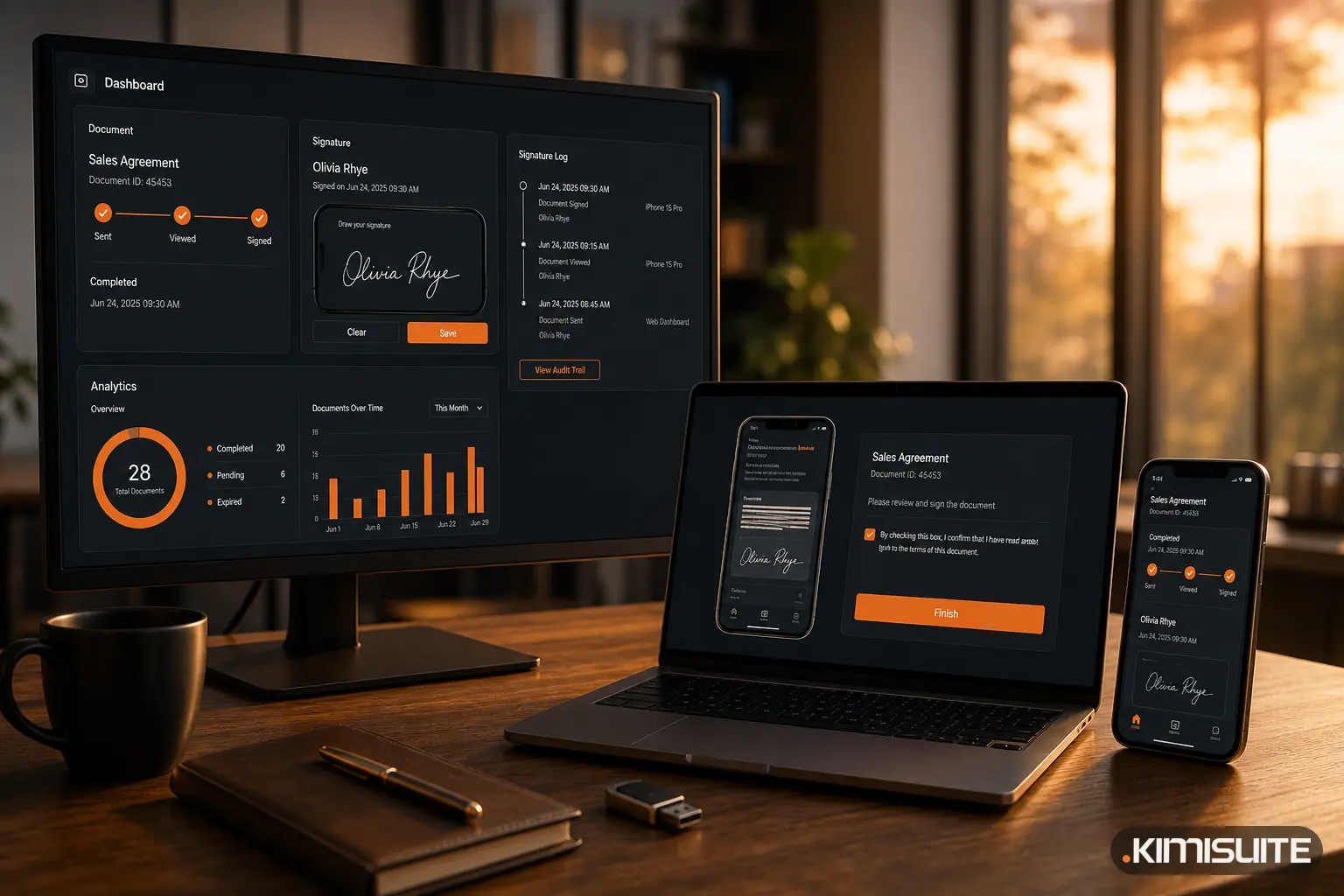
The recipient does not need an account. They open the link on a computer or phone, go through the fields one by one, and sign by drawing with a mouse, finger or pen, or by typing their name. Before they can finish, they confirm that they agree to sign electronically. If something is wrong, they can decline and give a reason, and you are informed.
The signing page is available in 16 languages, and you can set the language per recipient. A client in Skopje can go through the signing page in Macedonian while a partner in Vienna sees it in German; the document itself stays exactly as you uploaded it.
What you get back
When the last person has signed, the document is complete and you receive one sealed PDF:
| Part | What it contains |
|---|---|
| The signed pages | Your original pages with signatures, initials, names, dates, text and ticks filled in |
| Document stamp | A stamp with an 8-digit document number on every page |
| Signature log | Attached pages listing each recipient, their role, when they were invited, opened and signed, IP address and device, plus the full history of events |
| Digital seal | The finished PDF is digitally sealed, so later changes become visible |
| Time stamp | An independent RFC 3161 timestamp over the signed PDF |
In the app you also see the SHA-256 fingerprints of the uploaded file and the signed file, the timestamp details and every step of the history: uploaded, sent, opened, signed, declined, reminders, completed.
Which kind of signature it is
By default, signers use a simple electronic signature under the EU eIDAS Regulation, and every signer confirms that they agree to sign electronically. For everyday business paperwork such as offers, orders, service agreements, internal approvals and most customer consents, this is the level in common use.
Some documents need more. Where a qualified signature is required, from the Business plan you can set a signer's level to Certificate on token: they sign with the certificate on their own USB token or smart card, using the KIMISUITE Signer for Windows. The simple electronic signature stays the standard; the token signature is an option for the cases that call for it.
If you are unsure which level a document needs, we explain the three levels, and where the difference matters, in What Is an Electronic Signature? Simple, Advanced and Qualified.
Keeping track
The dashboard shows what is waiting for signatures, what is still a draft and what was recently completed. Documents can be grouped into projects, for example all contracts for one property or one hire, with a progress bar per project. Signing events also appear in the KIMISUITE notification bell, and each person waiting can be reminded with one click.
What Document Sign does not do
To keep expectations straight:
- no document editor and no templates; you upload finished files
- no connection to CRM Business Hub or Contacts; recipients are entered by name and email
- no custom branding on the signing page
- no public verification page for third parties
Plans are counted by documents sent per month, not by user. Drafts do not count until they are sent.
Try it
You can add Document Sign to your workspace and send your first document today. See how it works on the Document Sign app page.
Cancel anytime · No minimum term · 14 days free