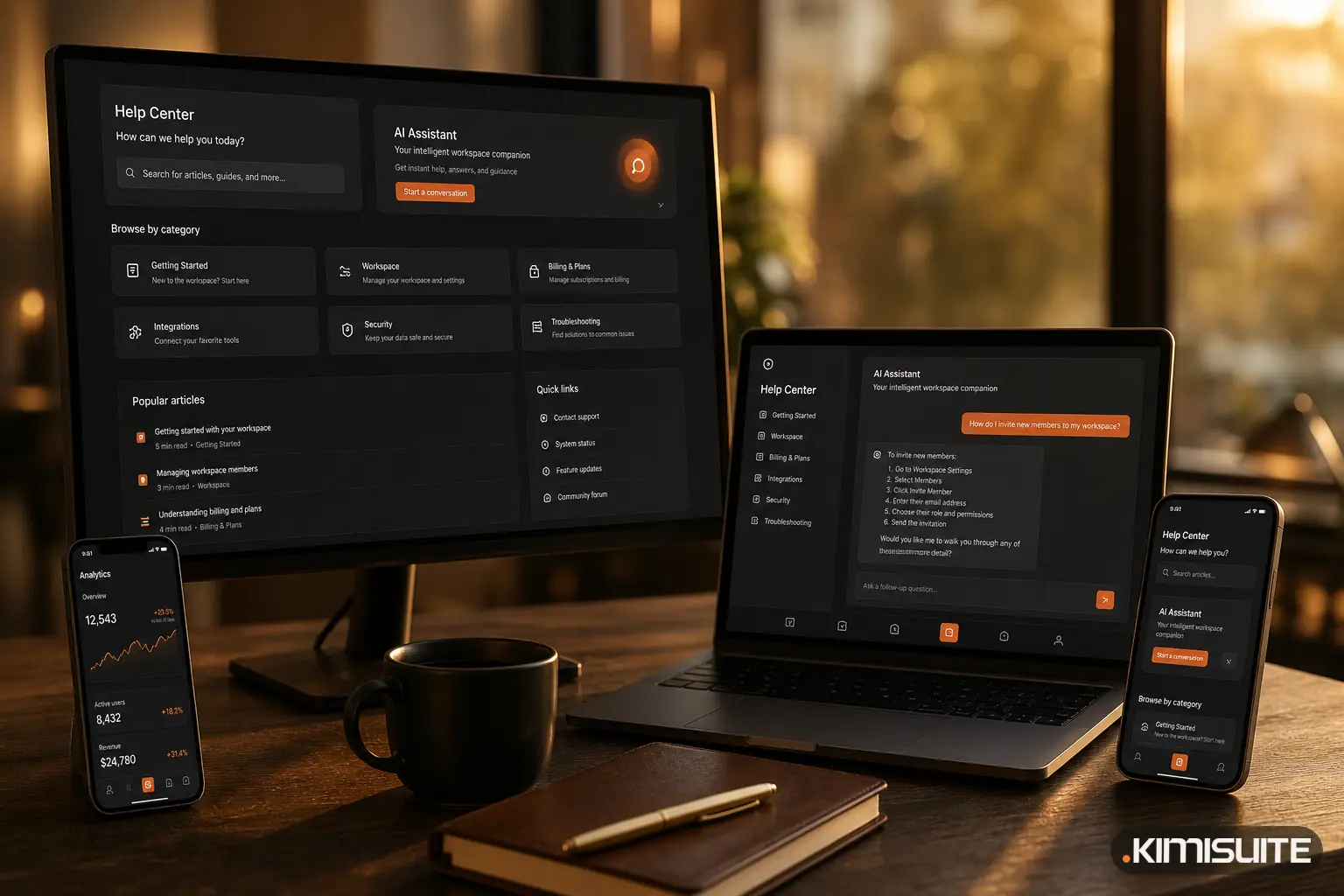
A help assistant is only useful if it is there at the moment you get stuck, and if it does not get in your way the rest of the time. This week's changes to trettly inside the KIMISUITE workspace are about exactly those two things: where you find it, and when it steps aside.
A proper home in the Help Center
The Help Center is the page you open from the menu at the top right of your workspace. trettly now has its own card at the top of that page, carrying its own mark, so you can see at a glance that this is the assistant and not another help article.
The card follows your theme. In light mode you see it on light, in dark mode on dark, and the chat inside it does the same. Type your question in the card and the answer appears in place. You do not leave the Help Center, and you do not lose the page you came from.
On every screen, not only in the Help Center
The Help Center is where you go when you want to read. Most questions come up somewhere else: halfway through creating an invoice, while setting up a board, in the middle of a booking.
On a computer, trettly sits in the corner of every screen of the workspace. One click opens it next to the app you are working in, so you ask about what is in front of you and carry on.
On the phone: a tab in the dock, not a floating bubble
On a phone, the workspace has a dock at the bottom of the screen with the main navigation. trettly used to be a separate floating bubble just above it, two controls close together doing different jobs, and the bubble covered part of the page.
That has changed:
| Before | Now |
|---|---|
| A floating bubble above the dock | trettly is a tab in the dock itself |
| The dock floated as a narrow pill in the middle of the screen | The dock runs the full width and ends the page cleanly |
| The dock could cover the footer and the app's side menu | It sits below the side menu, and the footer shows as one quiet line above it |
Tap the trettly tab and the assistant opens over the full screen. Close it and you are back where you were.
It steps aside for dialogs and the app menu
The assistant's button used to be drawn above everything else on the page. On a small screen that caused a real problem: when a dialog opened with its buttons in the lower right corner, the assistant could sit right on top of one of them. You tapped Cancel and got the assistant instead.
Moving the button a little higher would not solve it, because every dialog places its buttons differently. So trettly now gives way:
- When a dialog opens, in the workspace or inside any app, the assistant's button disappears until the dialog closes.
- When the full-screen app menu opens, it does the same, so the last row of apps is never covered.
- Small menus and tooltips do not hide it, because they do not block the page.
On phones the question has largely gone away, because trettly now lives in the dock rather than on top of the page. Nothing about the assistant itself changes. It is simply out of the way whenever something else needs your attention.
Answers in your language, from the documentation
trettly answers in the language you write in and draws on the KIMISUITE knowledge base: how to reset a password, turn on two-factor authentication, configure your email settings or set up an app. We covered what it can answer on the website, including prices in your currency and per-workspace plans, in What trettly can answer now.
Two limits are worth saying out loud. trettly explains and guides; it does not change settings or create records for you. And inside the workspace it describes where to find things rather than linking you straight to a screen in an app.
Where to find it
Open your workspace. On a computer, trettly is in the corner of every screen and on the Help Center page. On a phone, it is a tab in the dock. It is part of every workspace, including one that uses only the free apps. If you do not have a workspace yet, look through the apps you can add and create your free workspace.