To make a restaurant website, you decide what guests must be able to do on it (see the menu, find you, call, book a table), collect your real details and photos, build a few clear pages, connect a menu that stays current, add the legal pages your country requires, and publish it under your own address. A small restaurant can do all of that in an afternoon if the content is ready. This guide goes through it step by step.
Step 1: Decide what the website has to do
Most restaurant websites have the same four jobs. Guests want to:
- See the menu with prices, ideally on their phone
- Know when you are open and where you are
- Reserve a table or call you
- Get a feel for the place: photos of the room, the food, the people
Anything beyond that is optional: an events page, a gift voucher page, online ordering. Start with the four jobs and make each one possible in two taps from the home page.
Step 2: Collect your content before you build
The website is only as good as what you put in. Gather this first:
- Name, address, phone, email exactly as on your sign and your Google listing
- Opening hours per weekday, including lunch and dinner times and the days you close
- The menu with current prices and allergens
- Ten to fifteen good photos: the room, the terrace, five or six dishes, the team. Real photos beat stock photos.
- Three or four sentences about you: what kind of food, since when, what is special
- Your legal details if your country requires an imprint, such as the owner, the company register and the VAT number
Compress the photos before you upload them, so the site stays fast on mobile data. The image compressor does it in the browser without uploading your files anywhere.
Step 3: Plan a few clear pages
A restaurant website rarely needs more than four or five pages:
| Page | What goes on it |
|---|---|
| Home | One strong photo, one sentence, buttons for "Menu" and "Book a table", hours and address |
| Menu | The current menu, readable on a phone, with allergens |
| About | Your story, the team, the room |
| Reservations or Contact | Booking form or phone number, map, directions, parking |
| Events (optional) | Wine evenings, set-menu nights, holidays |
A one-page website with these as sections works just as well for a small place.
Step 4: Make the menu live, not a PDF
The most common problem on restaurant websites is the menu: a PDF from last season, hard to read on a phone and out of date after the first price change. A live menu that comes from the same place you edit your menu changes on the website as soon as you change it. More on that in why a widget beats a PDF link.
Step 5: Let guests reserve
Give guests one clear way to book. A booking form on your own site keeps the guest and the decision with you; a phone button works for places that prefer to talk. If you use a booking portal as well, link to one place only, so guests do not wonder which one counts. See table requests vs booking portals.
Step 6: Get found on Google
- Same details everywhere. Name, address and phone should match your Google Business Profile letter for letter.
- A clear page title and description for each page, with your cuisine and your town.
- Structured data that tells search engines your address, opening hours and type of business.
- Real reviews. Ask happy guests to leave a review on Google; a short link makes it easy. The Google review link generator creates one.
- Speed and mobile. Most guests look you up on a phone, often standing outside.
Step 7: Add the legal pages
What you need depends on your country. In Germany, for example, § 5 of the Digitale-Dienste-Gesetz (DDG) requires business websites to keep provider details such as name and address easy to recognize, directly reachable and always available, which is what the "Impressum" page is for. A privacy policy is expected wherever you collect personal data, for example through a booking form. If you use tracking or embedded services that set cookies, a consent banner may be needed too. Write these texts carefully or have them checked; this guide is not legal advice.
Step 8: Publish and keep it current
Choose your address: your own domain looks most professional. After publishing, set yourself two small routines: update hours before every holiday, and check the menu whenever prices change. If the menu is live, the second one takes care of itself.
Doing it with the AI Website Builder
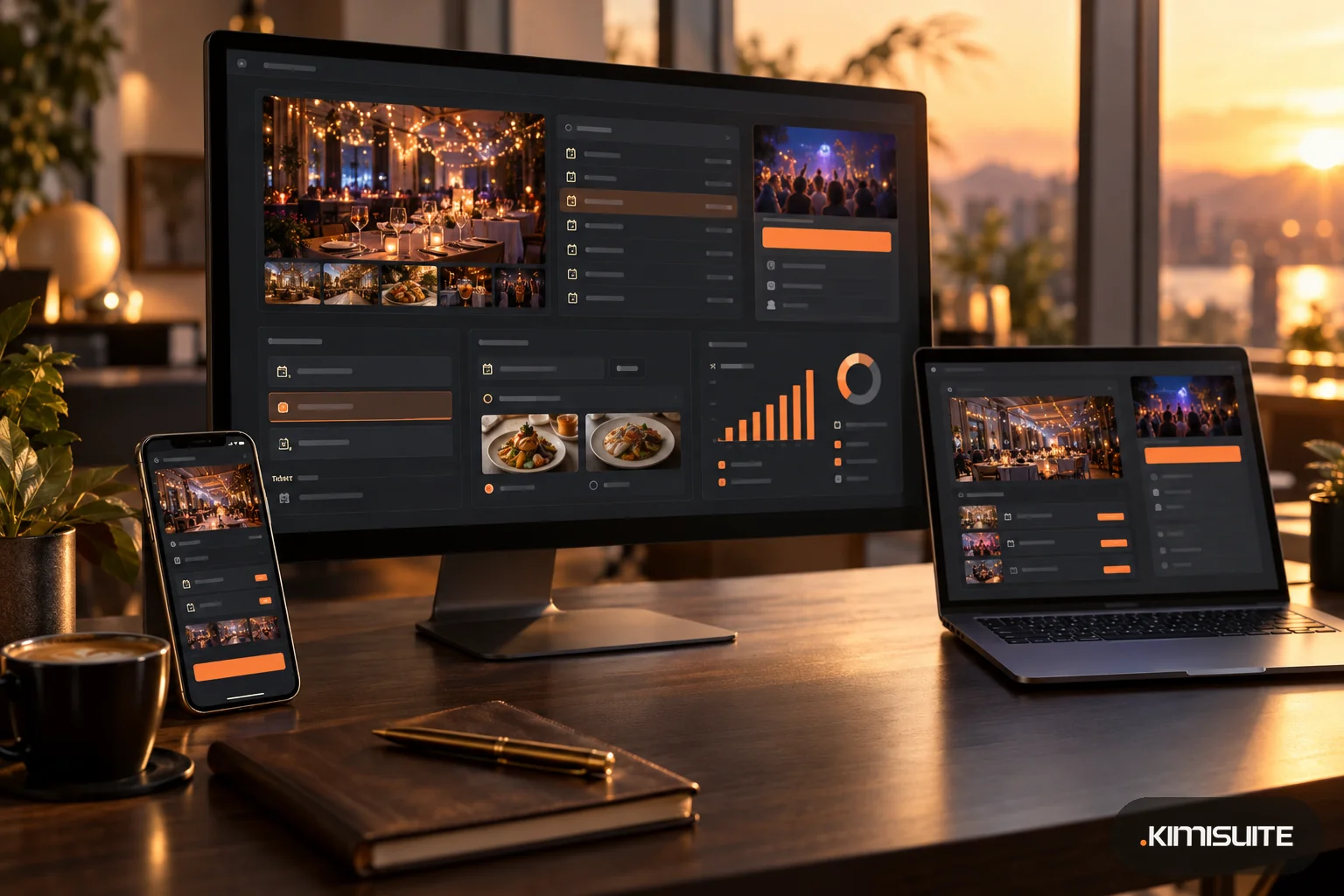
The AI Website Builder in KIMISUITE builds the website with you through its assistant, trettly. You can chat with trettly, go step by step, start from a design, or import your existing website.
- Your details come from the workspace: name, address, phone, opening hours, social links, logo and imprint details are filled in for you to check.
- Questions about your restaurant, with examples for restaurants, and a choice of what visitors should do first, such as "Book a table".
- Your menu, live: with Restaurant Hub in the workspace, the website shows your current menu with allergens, and you can place the Restaurant Hub table booking widget on a page so guests send a table request.
- Legal texts: an assistant creates the imprint, privacy policy and accessibility statement in versions for Austria, Germany, Switzerland, the EU or international, and you confirm that you have checked them. A cookie banner appears only when it is needed.
- SEO and accessibility check with a score per page and tips, including a WCAG 2.2 AA accessibility check; page titles, descriptions, sitemap, structured data with address and opening hours, and a language version per language.
- Any language for the website, with a language switch with flags.
- Publishing on a free address under kimisuite.si with a "Made with KIMISUITE" badge, or on your own domain if your plan includes one, with a guided domain setup.
AI tasks such as writing texts or changes by chat use your workspace's AI credits; editing texts yourself does not. For the step-by-step version with a live menu, see AI website builder: from a few sentences to a live, multilingual website.