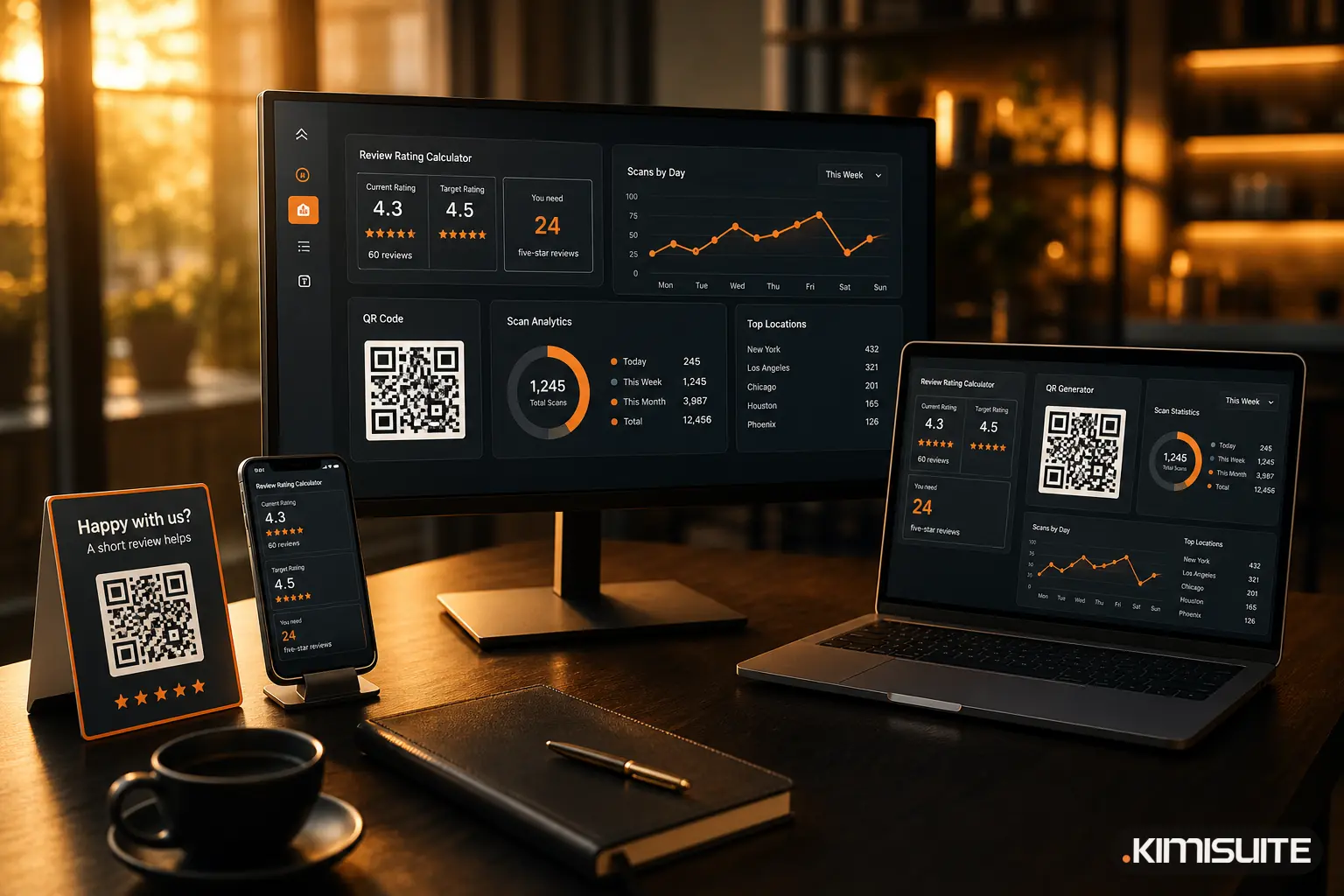
Getting more Google reviews comes down to two things: asking every customer at the right moment, and making the review form one tap away. Before you start asking, it helps to know how far you have to go. Moving a rating from 4.3 to 4.5 can take two dozen new 5-star reviews or more than a hundred. It depends on how many reviews you already have.
This guide shows how to work out your number, build a direct review link and ask within Google's rules.
Step 1: Work out how many 5-star reviews you need
Your average rating is all your stars divided by the number of reviews. Each new 5-star review pulls it up a little, and the more reviews you have, the smaller that pull. The number of new 5-star reviews you need is:
reviews today × (target − current rating) ÷ (5 − target)
Round the result up to the next whole review.
Three examples:
| Today | Target | New 5-star reviews needed |
|---|---|---|
| 4.3 from 60 reviews | 4.5 | 24 |
| 4.3 from 300 reviews | 4.5 | 120 |
| 4.6 from 40 reviews | 4.7 | 14 |
The first row in detail: 60 reviews at 4.3 add up to 258 stars. Add 24 five-star reviews and you have 378 stars from 84 reviews, which is exactly 4.5. The business with 300 reviews has the same rating, but it needs five times as many new reviews to reach the same target.
The Review Rating Calculator does this for you from your current rating, number of reviews and target. It also shows:
- What one 1-star review would do. From 4.3 with 60 reviews, a single 1-star review takes you to 4.25.
- What ten more 5-star reviews would do. From the same starting point, ten new 5-star reviews take you to 4.40.
A low review hurts most when you have few reviews. At 4.8 from 15 reviews, one 1-star review drops you to 4.56. At 4.8 from 300 reviews, it only takes you to 4.79. A large, steady stream of reviews is the best protection against a single bad day.
Treat the result as a planning number, not a promise. The calculator uses a plain average of stars, and the figure Google displays can differ slightly. If your target is a perfect 5.0, the calculator tells you that you cannot reach it once you have one lower review, and shows the closest you can get.
Turn the number into a monthly goal
Divide your number by the months you give yourself: 24 reviews in six months is 4 a month, about one a week. That is a goal a team can work towards.
Step 2: Make the review form one tap away
Few customers will search for your listing on Maps and scroll to the reviews. A direct link takes them straight to the review form. There are two ways to get one.
From your Google Business Profile. In its help pages, Google says: go to your Business Profile, select Read reviews, then Get more reviews. There you can copy your review link or save a QR code as an image. According to the same page, review QR codes can currently be made only in a computer browser, not on a phone.
From your Place ID. Every place on Google Maps has a Place ID. You can look yours up with Google's Place ID Finder. Paste it into the Google Review Link Generator to get a direct review link you can copy or open. This works if you do not manage the Business Profile yourself, for example when you build the link for a client or for a branch you do not run.
Either way, open the link once on your own phone before you share it, to make sure it lands on the review form for your business. Customers need to be signed in to a Google account to post a review.
Step 3: Put the link where the moment is
The right time to ask is just after a good experience, while it is still fresh. Google's own suggestions for review links and QR codes are on your receipts, in thank-you emails, at the end of a chat, and printed in your store. In practice:
- At the counter or on the table. Print the review link as a QR code next to the payment terminal or on a table card. You can make one with the free QR Code Generator.
- On the invoice or receipt. One line and a small QR code: "Happy with us? A short review helps."
- In the follow-up email. Send it the day after the appointment, the stay or the delivery, with the link as the only button.
- In chat. If customers write to you on WhatsApp or another messenger, end a resolved conversation with the link.
- Ask out loud. A short, friendly "If you enjoyed it, a Google review would really help us" at the moment someone thanks you works better than any sign.
Ask everyone, not just the customers you think will be happy. That is a rule as well as good practice (see below).
What Google does not allow
Google's Maps user-generated content policy (retrieved 25 October 2026) is clear on how businesses may ask for reviews. Among other things, it does not allow businesses to:
- Offer incentives. No payment, discounts, free goods or services in exchange for posting a review, or for changing or removing a negative one. Its Business Profile help pages call this fake engagement and say it is strictly prohibited.
- Gate reviews. You must not discourage or prohibit negative reviews, or ask only the customers you expect to be happy. A "Were you satisfied? Yes goes to Google, no goes to a private form" flow is exactly this.
- Pressure people on site. When you ask for reviews, you should not require or pressure customers to leave a rating or review while they are still on your premises. A QR code on the table is an invitation. Standing next to a guest until they have posted is pressure.
- Post reviews with a conflict of interest. That includes current or former employees and people with a business or personal tie to you.
Following them costs nothing: ask everyone, make it easy, and offer nothing in return.
Answer the reviews you get
Google's tips for Business Profiles also recommend replying to reviews: short, professional and personal. For a negative review, apologise where it fits and never share the reviewer's private details.
Track which placement works
Once your link is printed in several places, you want to know which one gets people to scan. In QR Generator, the QR code app in your KIMISUITE workspace, plans with scan analytics make every code dynamic by default. The printed code holds a short link, so you can change where it points later without reprinting, and each scan is counted: per code, by day, device and country. Give the counter card, the receipt and the table card each their own code, and after a month you know which one to keep.
A scan is not a review, of course. Compare your scan counts with the new reviews on your profile to see where people actually follow through. For more ideas on where QR codes help a business, read why businesses use a QR code generator.
FAQ
How many 5-star reviews do I need to go from 4.2 to 4.5?
It depends on how many reviews you have. With 80 reviews you need 48 new 5-star reviews; with 20 reviews you need 12. Enter your own figures in the Review Rating Calculator.
Can I offer a discount for a Google review?
No. Google's policy does not allow incentives such as payment, discounts or free goods and services in exchange for a review, and that applies to honest reviews too.
Can I send only happy customers to Google?
No. Google does not allow you to selectively ask for positive reviews or to discourage negative ones. Ask every customer in the same way.
Where do I find my Google review link?
In your Google Business Profile under Read reviews and Get more reviews, on a computer browser. If you only have your Place ID, the Google Review Link Generator builds the link from it.