Online consultation booking means a client picks a free time on your booking page, confirms it, and receives a video link for that session without you sending anything by hand. For coaches, consultants and therapists who work remotely, it replaces the familiar chain of "which time suits you?" emails, a calendar invite, a separate video link and a reminder you forgot to send.
This guide walks through what a good booking-to-video flow needs, where it usually breaks, and how to set it up so the session simply happens.
Where the usual setup breaks
Most coaches start with three separate tools: a scheduling link, a video service and a calendar. Each works on its own. The trouble is in between:
- The link is not tied to the booking. You reschedule the session, but the old video link is still in the client's inbox.
- Cancellations leave orphans. The booking is canceled, the meeting still exists, and a client turns up to an empty room.
- Time zones confuse people. Your 10 a.m. is your client's 9 a.m., and one of you turns up an hour off.
- Rules live in your head. You do not take bookings for tomorrow morning, you need a week's notice for a first session, and you want clients to accept your terms first. None of that is on the scheduling page.
The aim is one flow in which the booking and the meeting are the same object: create it, move it or cancel it once, and the video link follows.
What clients expect from the booking page
A prospective client deciding whether to book a first session looks for:
- Your services with length and price, for example a 30-minute discovery call and a 60-minute session.
- Times shown in their own time zone.
- Clear terms: how far ahead they can book, your cancellation policy, your privacy policy.
- A confirmation that contains the link, so they do not wonder how to join.
- Joining without creating an account, in the browser on any device.
If any of these is missing, you get the questions back by email.
Setting your booking rules
Before you publish a booking page, decide on four rules:
- Minimum notice. How soon before a session someone can still book. Two hours, a day, or more for first sessions.
- Booking window. How far ahead your calendar is open, for example 30 days.
- Session length and gaps. Leave time after each session for notes, so back-to-back calls do not run into each other.
- Manual or automatic confirmation. Automatic is faster for existing clients; confirming by hand lets you check a new inquiry first.
If you work with clients abroad, check your offered hours against their working day in the free time zone converter before you set them. For the session itself, a short agenda helps a first call stay on track; the free meeting agenda generator gives you one to adapt.
How the flow works with Service Manager and Meeting Hub
In KIMISUITE, two apps in the same workspace cover this flow: Service Manager takes the booking, and Meeting Hub runs the video session. The workspace needs both apps.
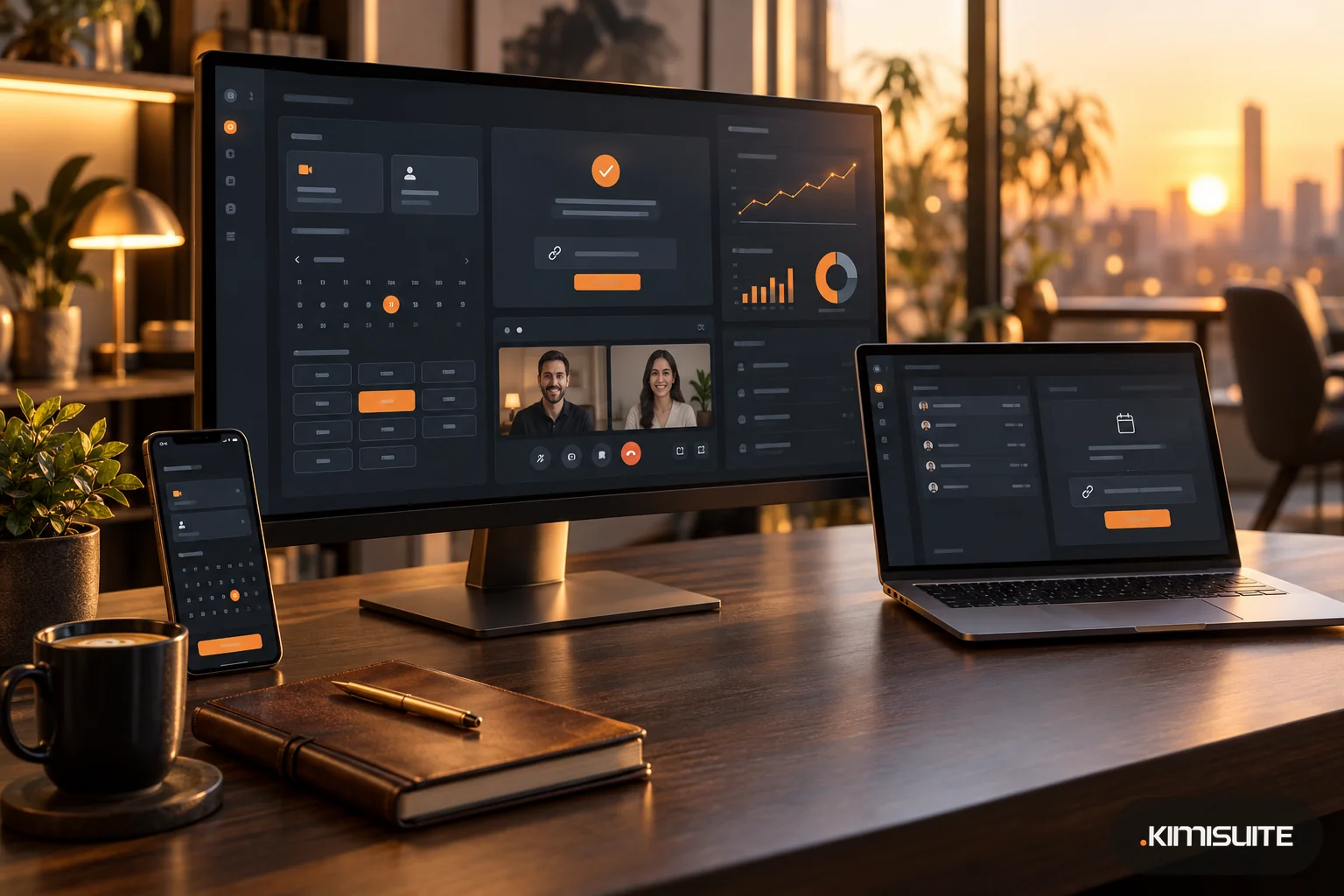
The booking page. Service Manager gives you a public booking page with eight templates, your services by category with price and duration, and copy in the languages you choose. Clients see each time in your time zone and theirs ("Your time"). You set minimum notice and a booking window, and when your terms and privacy policy are switched on, clients must tick both before booking. Your cancellation policy is linked on the page. With auto-confirm off, new bookings wait in a confirmation queue on your dashboard until you click Confirm.
The meeting is created for you. In Service Manager you switch on the Meeting Hub integration and mark which services are online meetings. When such a booking is confirmed, a meeting is created in Meeting Hub with the client invited, and the confirmation email goes out. Your booking record shows the client's link, a "Join as host" button, and options to re-send the links or regenerate the host link.
Changes follow the booking. Reschedule the booking and the meeting moves with it. Cancel the booking and the meeting is canceled too; the client's link then says the meeting was canceled.
The session itself. Clients join from the link in their browser with just a name, no account needed. A waiting room lets you admit them when you are ready, and a meeting can have a password. During the call you have screen sharing, a whiteboard, chat and live captions. After the meeting you can download the transcript, and on the Pro and Enterprise plans you get an AI summary with action items and key decisions by email. On the Starter plan meetings end after 120 minutes, which matters if you run longer workshops.
Your own emails. Service Manager email templates exist for each event (created, confirmed, canceled, rescheduled and more) in each language, and they can include the meeting link as a placeholder.
A simple first setup
- Create two services: a short discovery call and your standard session, both marked as online meetings.
- Set working hours, minimum notice and a booking window.
- Add your terms, privacy policy and cancellation policy.
- Choose a booking page template and put the link in your email signature and social profiles.
- Book yourself once as a test client and join from a second device.
FAQ
What is online consultation booking?
It is a booking page where clients choose a time for a remote session and automatically receive the video link, so you do not send invites by hand.
What happens to the video link if a client reschedules?
With Service Manager and Meeting Hub connected, rescheduling the booking moves the meeting, and canceling the booking cancels the meeting.
Do my clients need an account to join the video session?
No. They open the link from their confirmation and join in the browser by typing their name.
Can I approve new clients before a session is confirmed?
Yes. Turn off auto-confirm, and new bookings wait in the confirmation queue until you confirm them.
Add Service Manager and Meeting Hub to your workspace and try them for 14 days