 Part of Showroom TV
 Connect your TVs and keep them in view
Install the app, pair with a code, watch from your desk
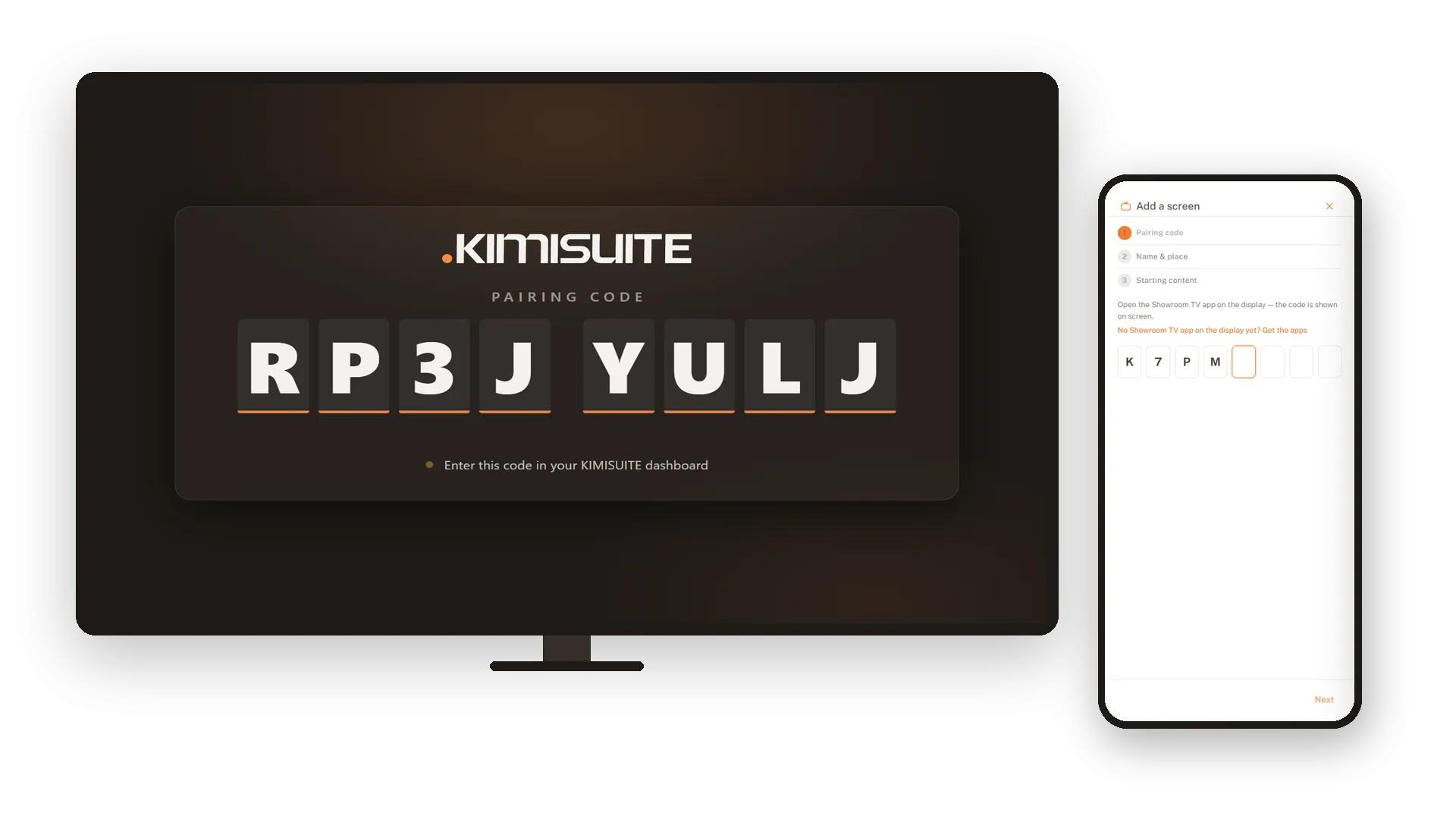
Your Android TV or Google TV becomes your screen: in the shop window, the lobby or the waiting room. Download the Showroom TV app from your dashboard, install it on the TV, and type the code it shows into your workspace. The app starts with the TV, plays in full screen and keeps playing when the internet drops. From then on the screen fetches its programme by itself.
Every screen sits in one list with its status, location, last sync and what it plays right now. The dashboard names the screens that need attention, so a TV that went dark does not stay unnoticed. From your desk you can resync a screen, restart the player or blank it for the night. Each location keeps its own time zone, so 07:00 always means 07:00 on site.
Key Benefits
Pair in three short steps: code from the TV, name and place, starting content
An app for Android TV and Google TV that starts with the TV and plays in full screen
Online, offline and last sync for every screen, with a list of what needs attention
Put one playlist on one screen for a day, then hand it back to your campaigns
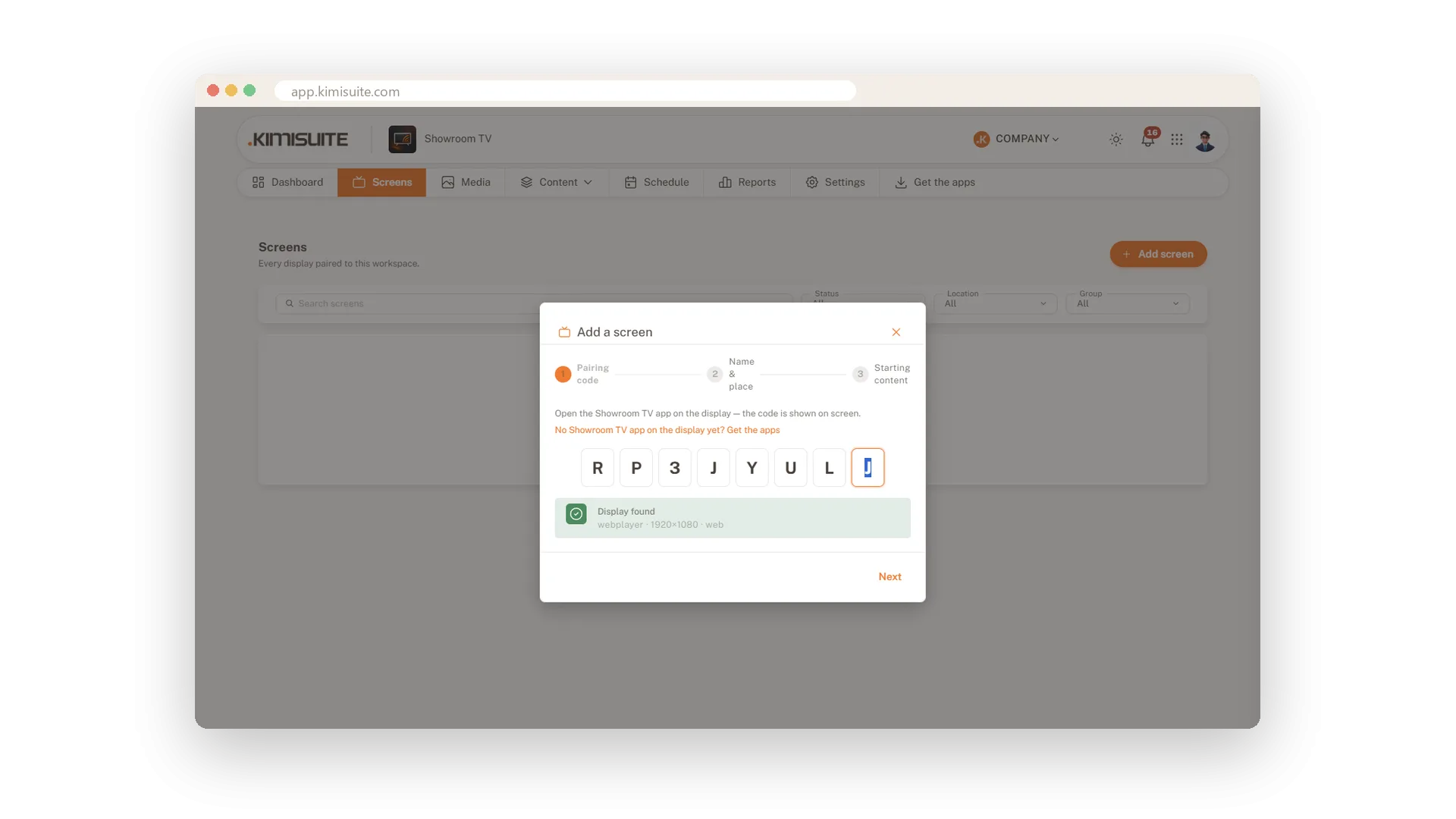
Pair a TV with an eight-character code
Type the code, pick the place, done
The TV shows a code, you type it into your workspace, give the screen a name and a location, and press Pair screen. The TV switches from the code to your content on its own. It works just as well from your phone while you stand in front of the screen.
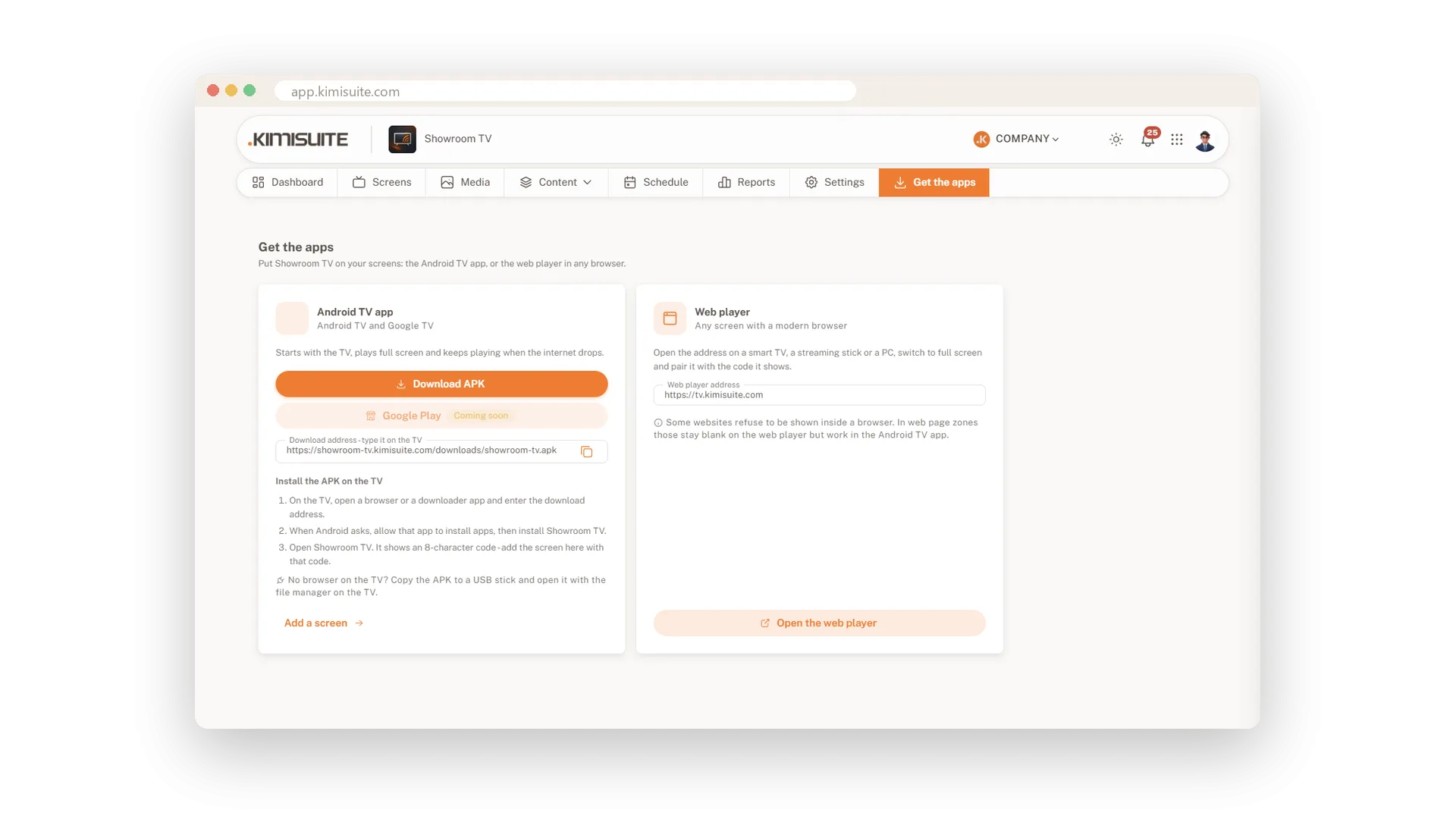
The Showroom TV app for Android TV
Starts with the TV and keeps playing offline
Download the app from your dashboard and install it on your Android TV or Google TV, with a step-by-step guide for a download app or a USB stick. It starts with the TV, plays in full screen and keeps playing when the internet drops. A Google Play listing follows.
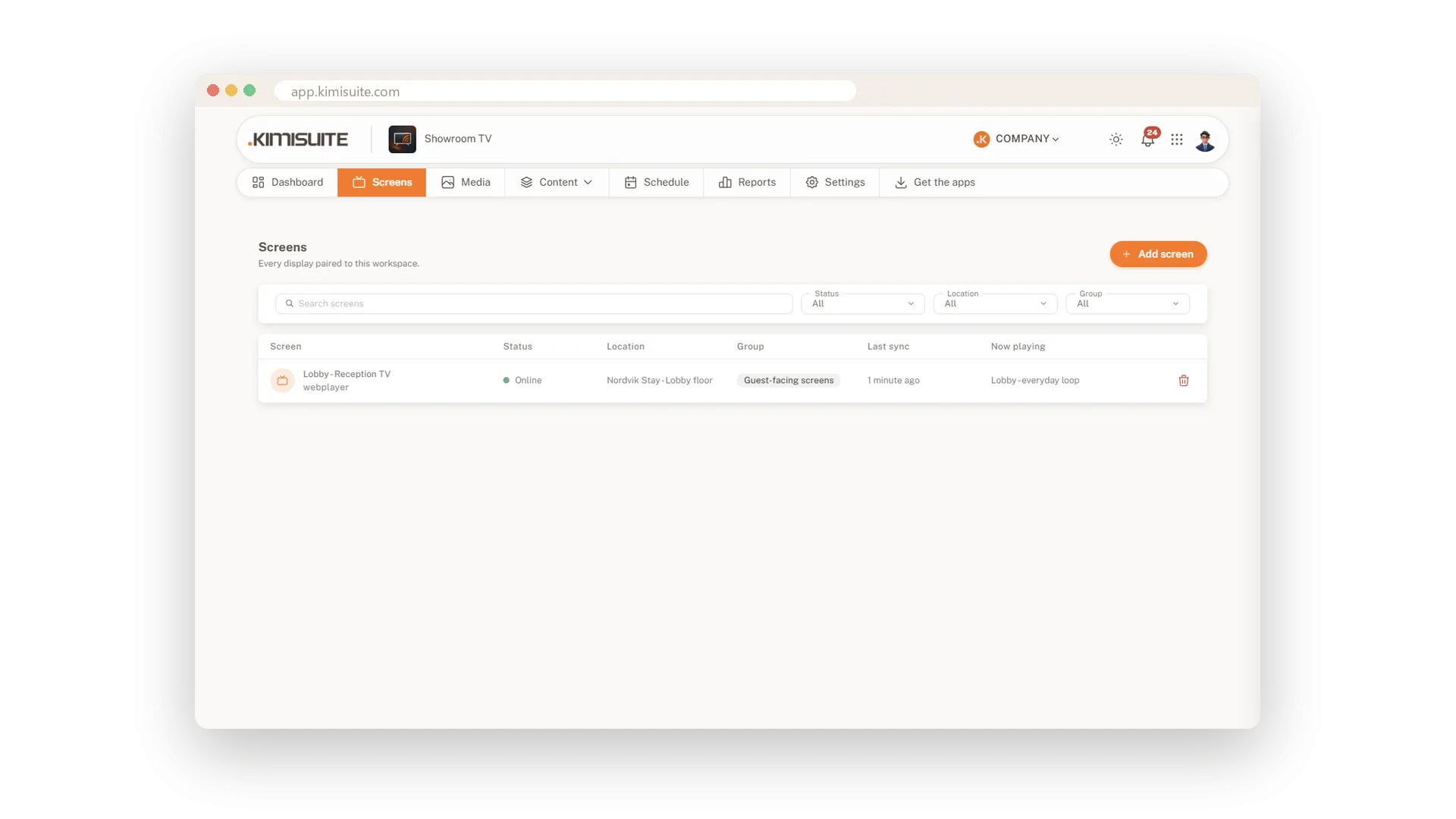
Every screen's health at a glance
Online, offline and what is playing now
See all screens in one list with their status, location, last sync and the content playing right now. Open a screen to find its resolution, local time and a history of when it went online or offline. The dashboard tells you which screens need attention.
Resync, restart or blank a screen from afar
Fix a screen without walking over
Send a resync, clear the cache, restart the player, or blank the screen after closing and wake it in the morning. The screen picks up the command within about a minute. Volume and mute are set per screen.
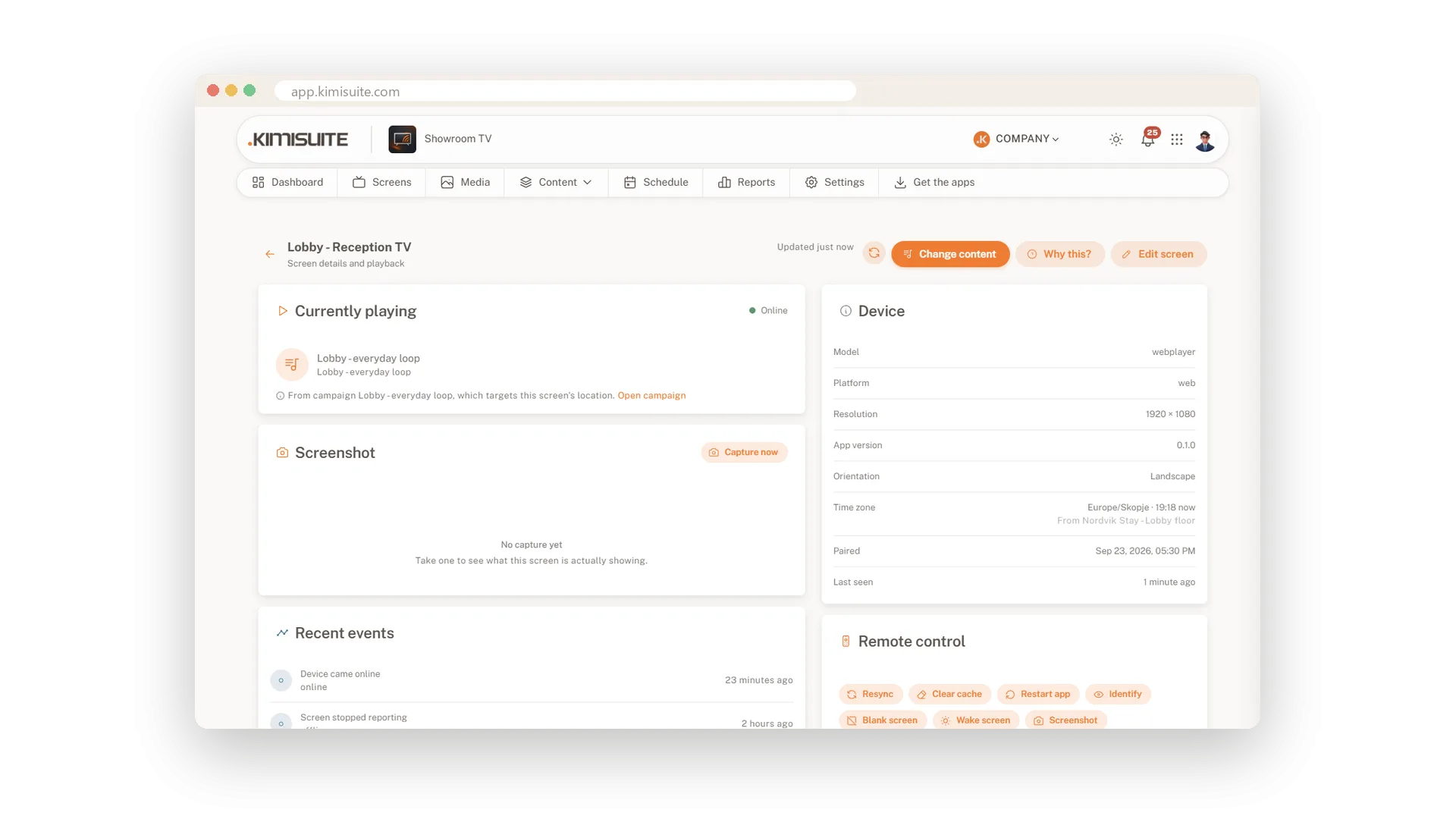
Something special on just one screen
One playlist, one screen, until you hand it back
Pick a playlist for one screen only, and it plays there above all your campaigns. Use it for a private event or a special day. When you are done, hand the screen back and the usual programme returns.
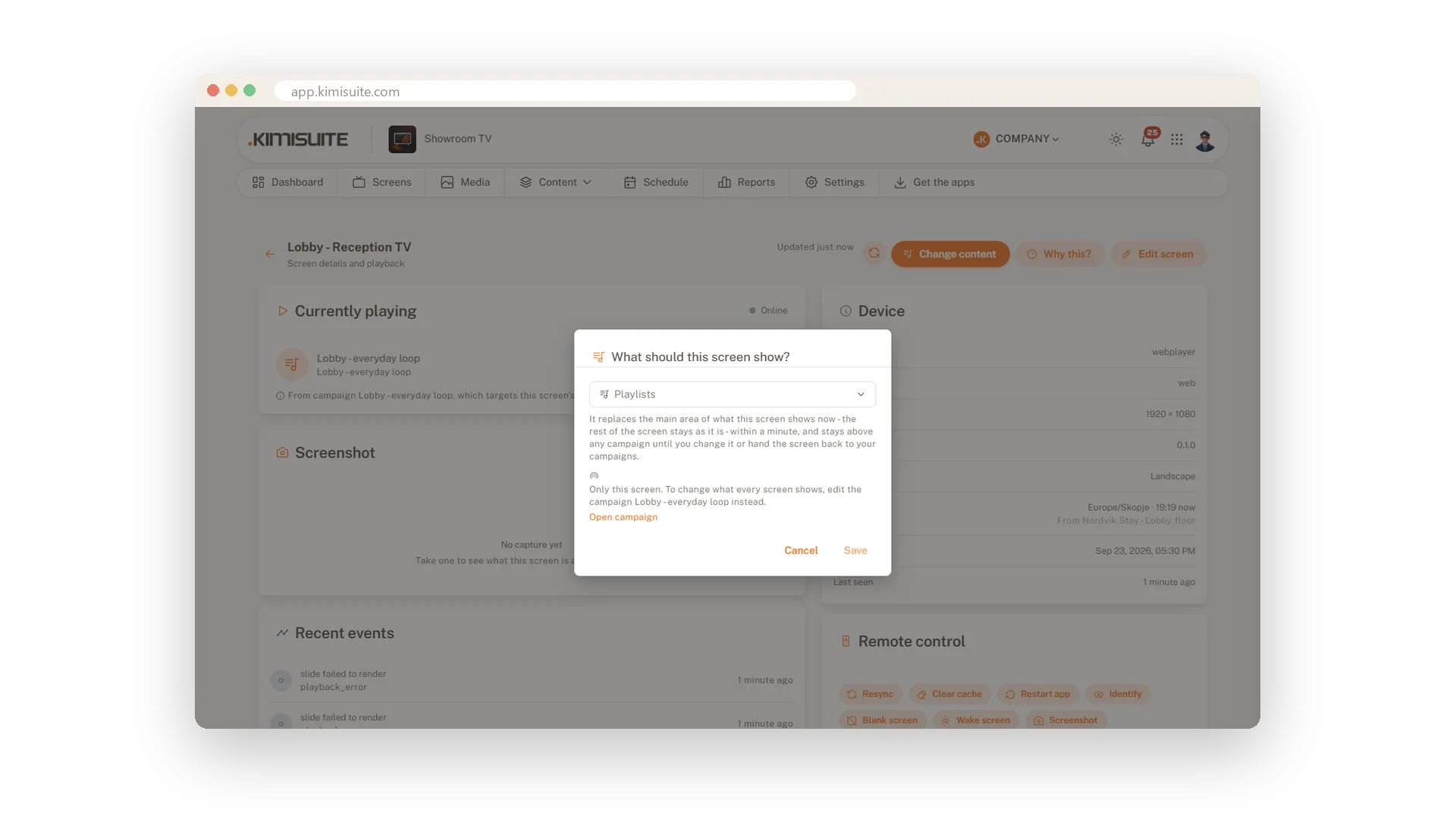
Every site in its own time zone
07:00 means 07:00 wherever the screen hangs
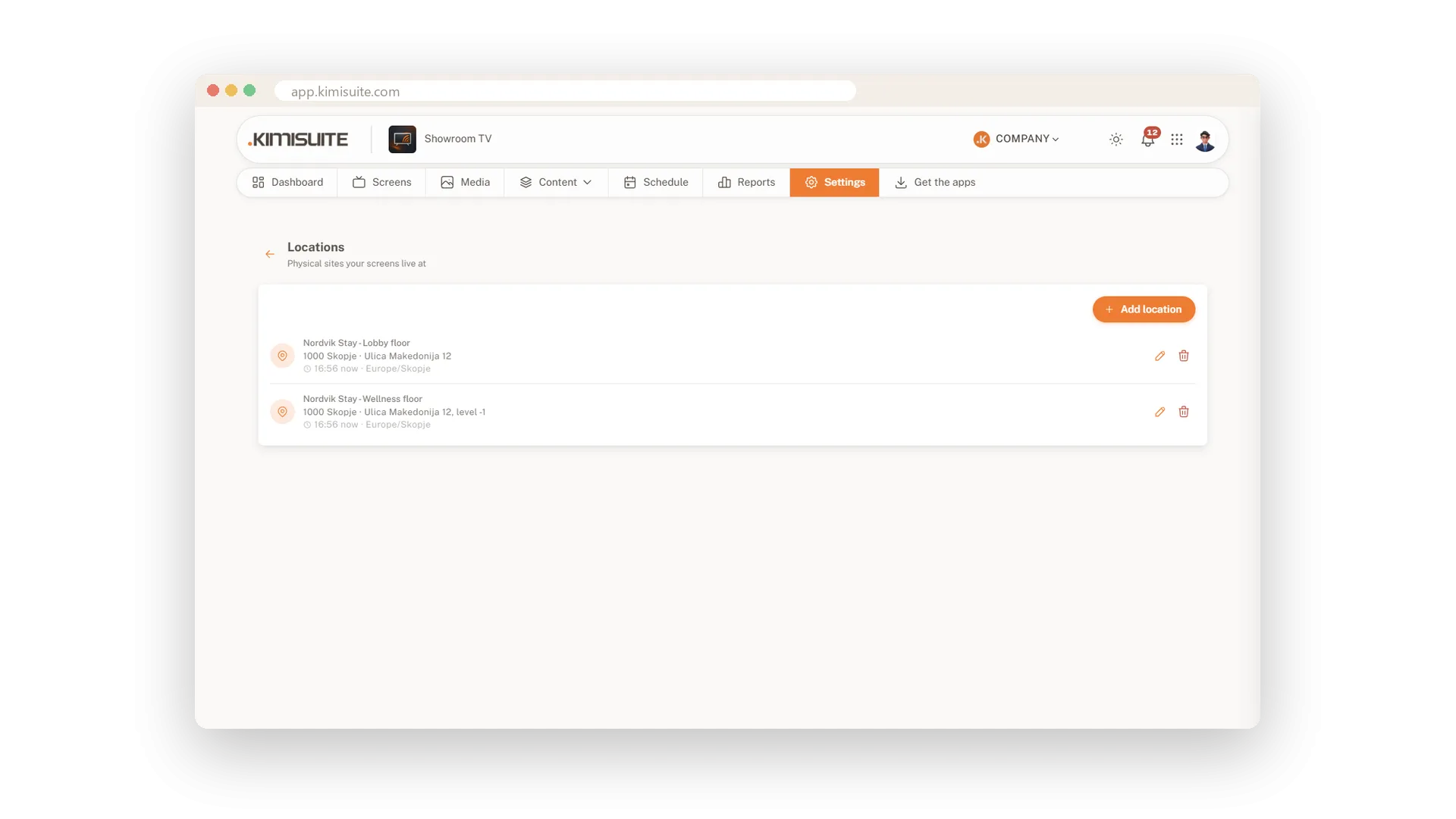
Type the city and the address, coordinates and time zone fill in for you. Every screen at the location follows that clock, so schedules run in local time. The list shows the current time at each site.
Use Cases
A new TV in the lobby
You start the app on the TV and type its eight-character code into your phone. A minute later the welcome loop is running.
The screen that went quiet
The dashboard lists a screen as offline and shows when it was last seen. You know which room to check before a guest mentions it.
A private event in the bar
You put the event playlist on the bar screen only. Tomorrow you hand it back, and the usual programme takes over.
FAQ
Try Showroom TV today
Your offers on every TV, planned from your desk
14 days free, cancel anytime, no minimum term.