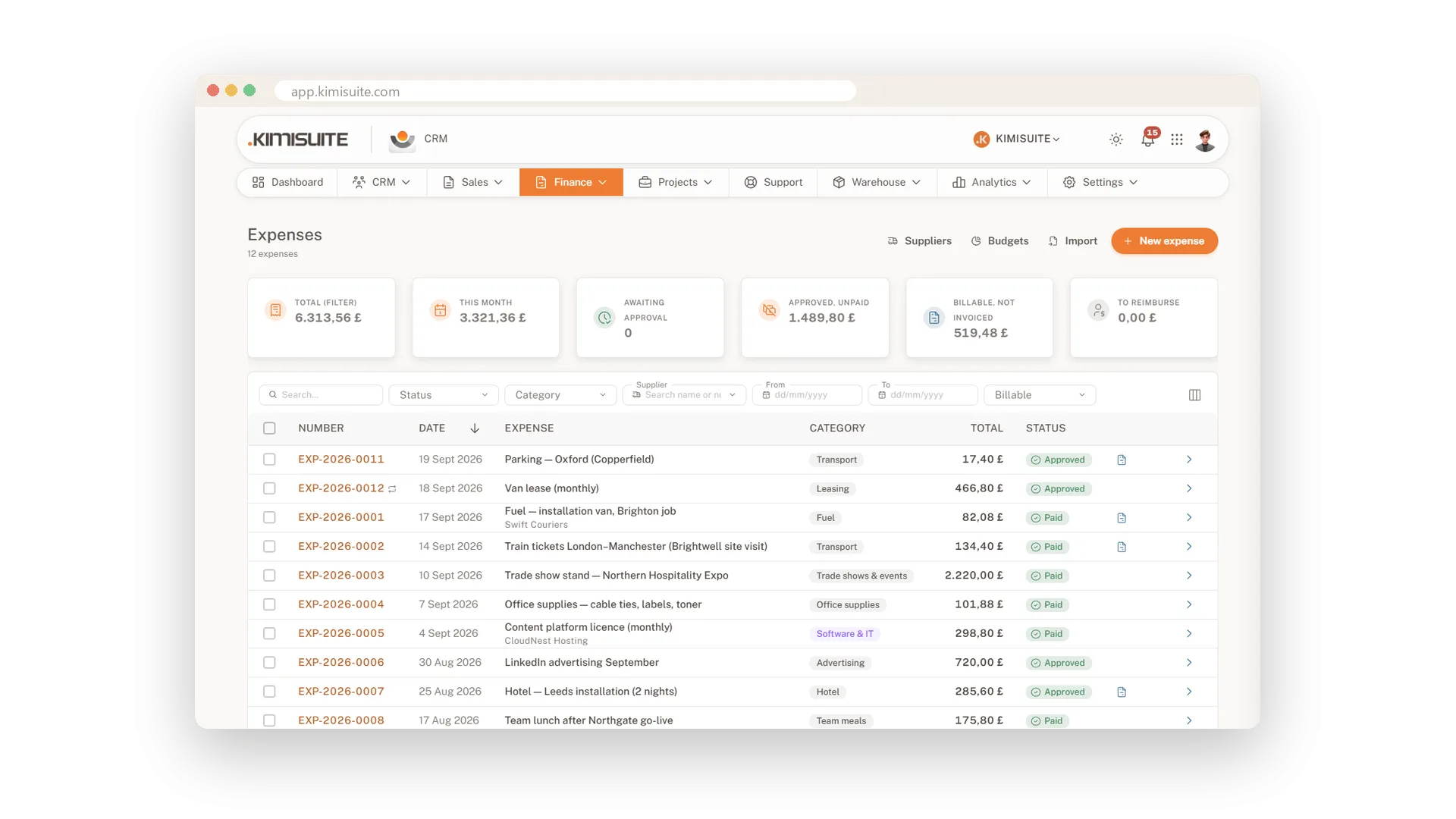
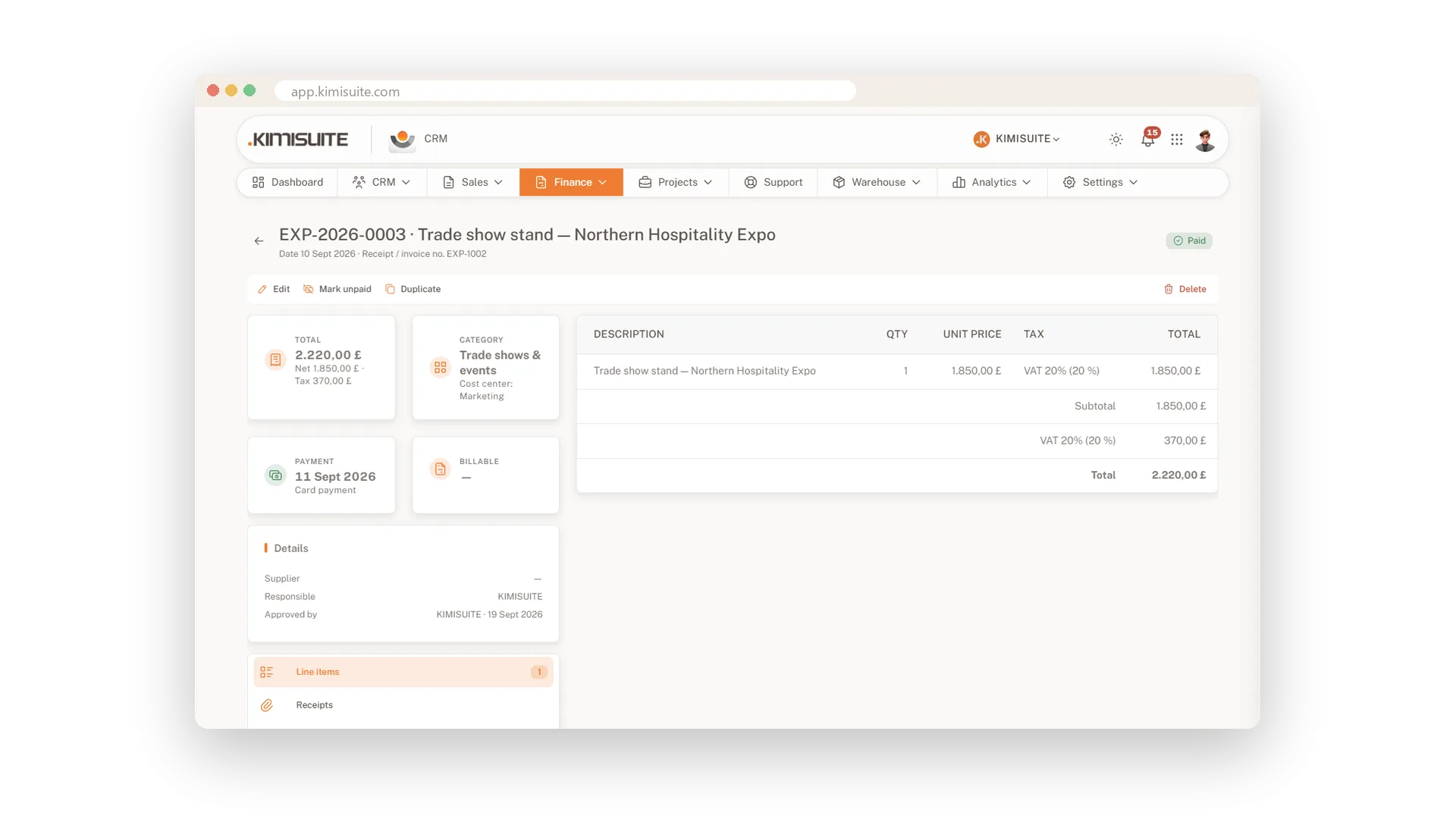
Profit is what is left after the costs, so the costs belong in the same place as your invoices. Record every expense with its supplier, category and tax, keep your supplier bills with their due dates, and see at a glance what waits for approval and what is still unpaid. Expenses for a customer or project are marked as billable, so nothing you could pass on is forgotten.
You start with twenty ready-made expense categories in 16 languages and add cost centres as you need them. Suppliers keep their payment terms and bank details, recurring costs like rent come back on schedule, and staff expenses are marked for reimbursement. From the Business plan, budgets show plan against actual for every category, cost centre or project.
Key Benefits
Twenty expense categories ready from the start, plus cost centres of your own
Draft, approved, paid: see what waits for approval and what is approved but unpaid
Link an expense to a customer or project and see what is billable but not yet invoiced
Supplier bills with due dates - what is overdue and what falls due in the next seven days
Recurring expenses and approvals
Regular costs come back, new ones get approved
Rent, software, insurance: set them up as recurring expenses and they come back on schedule. Every expense moves from draft to approved to paid, so you always know what has been signed off and what is still waiting.
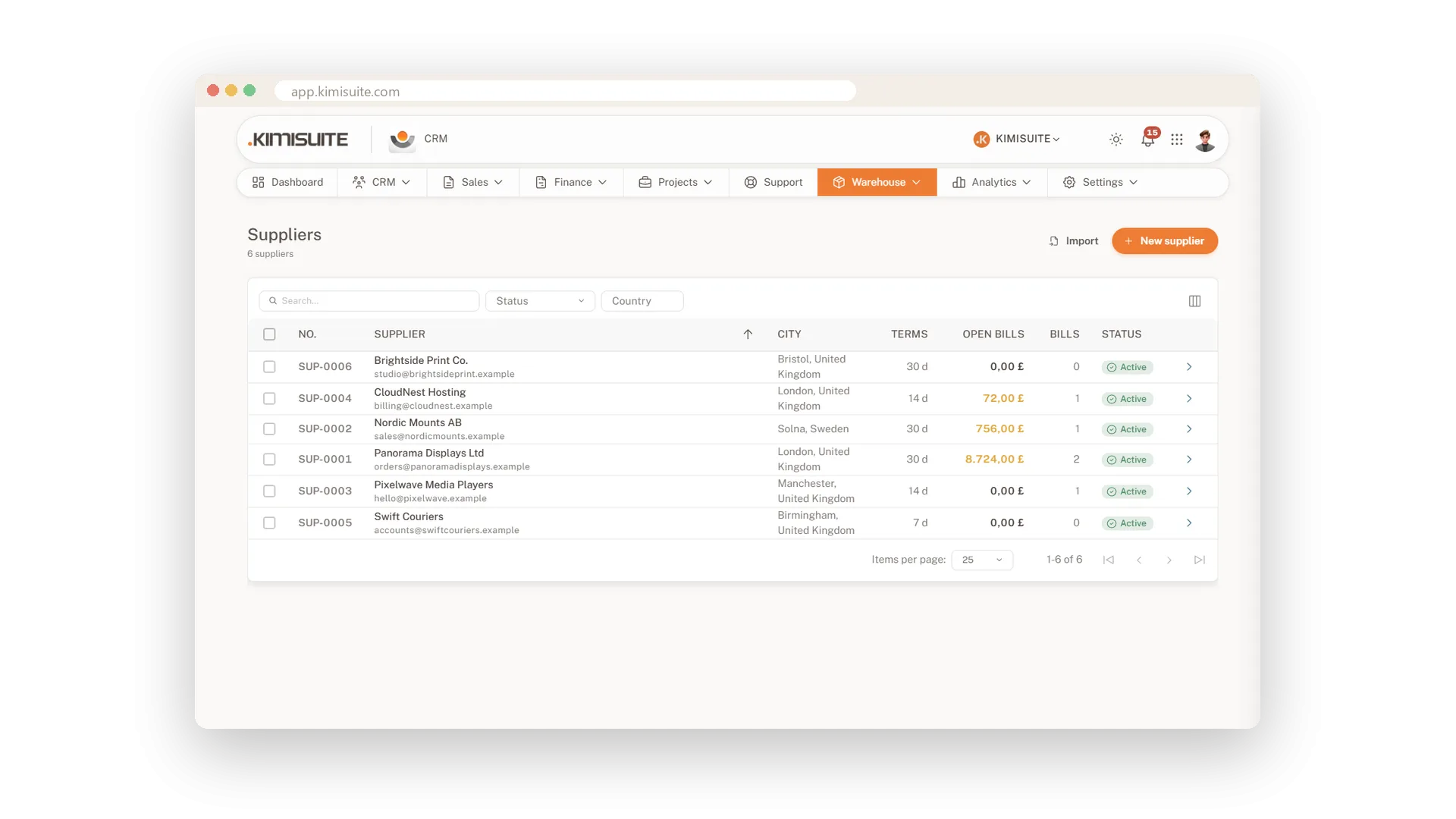
Suppliers with terms and bank details
Payment terms and IBAN where you need them
Keep every supplier with address, contact person, payment terms and bank details. Set a default category so their expenses sort themselves, and open the supplier to see every bill still open.
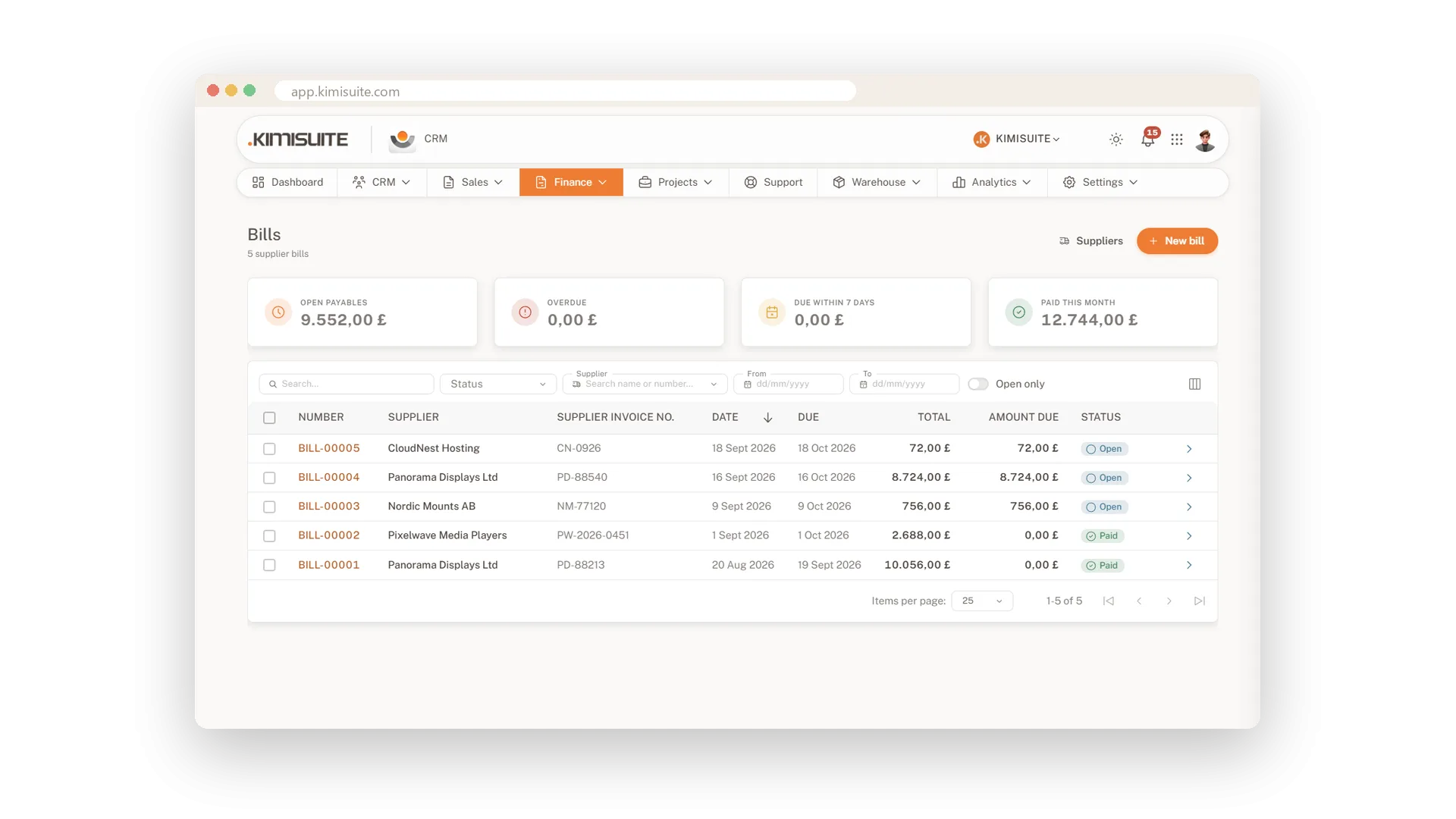
Supplier bills and what is due
Overdue and due this week, at a glance
Enter a supplier bill with their invoice number, lines and due date, and record the payments as you make them. The tiles on top show open payables, what is overdue and what falls due in the next seven days.
Budgets with plan against actual
See the overrun coming, not after the fact
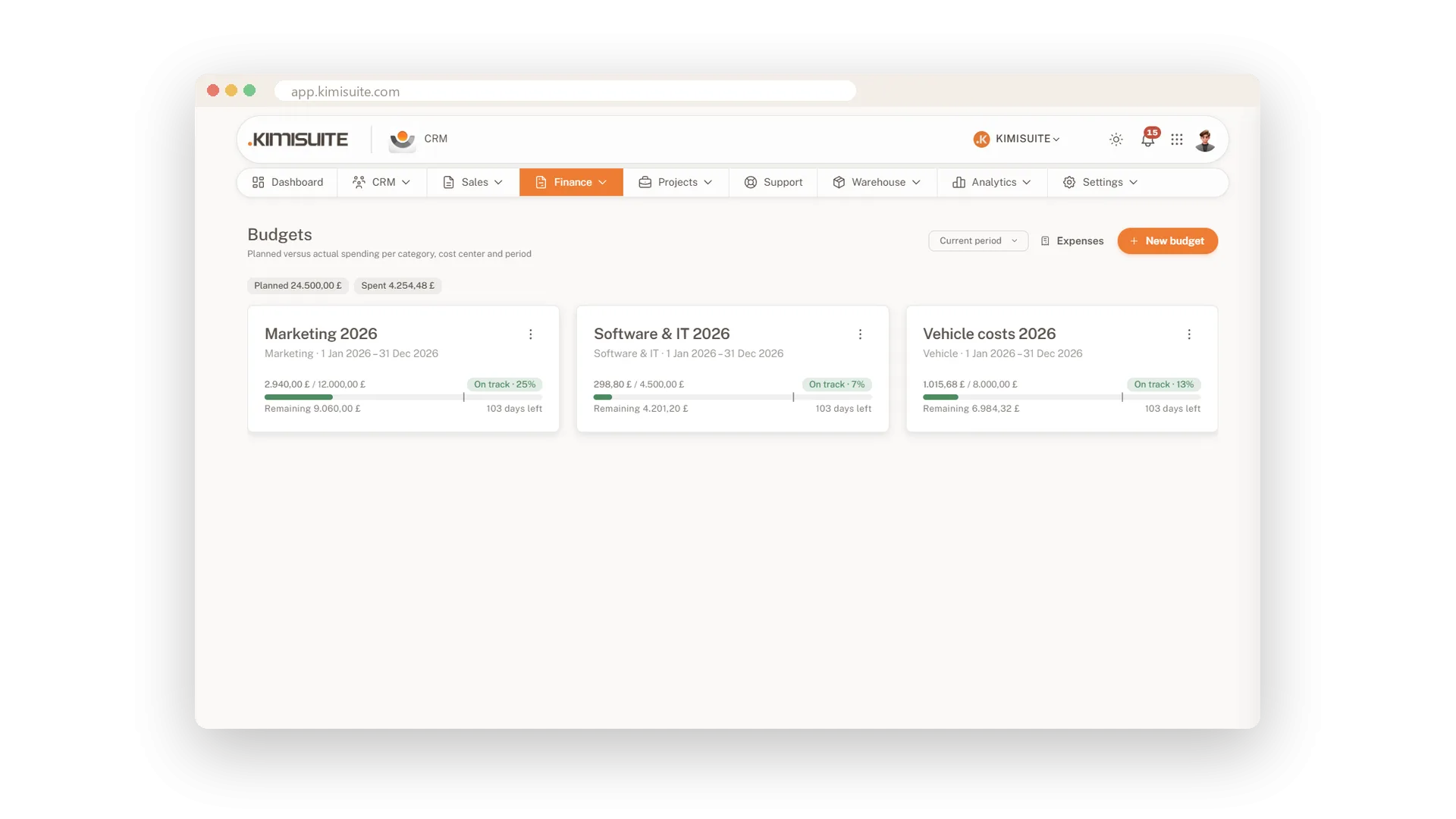
Set a budget for a category, cost centre or project and a period. A progress bar shows plan against actual and the days left, and a warning threshold flags it before the money runs out. Included from the Business plan.
Costs your customer pays for
Mark an expense as billable
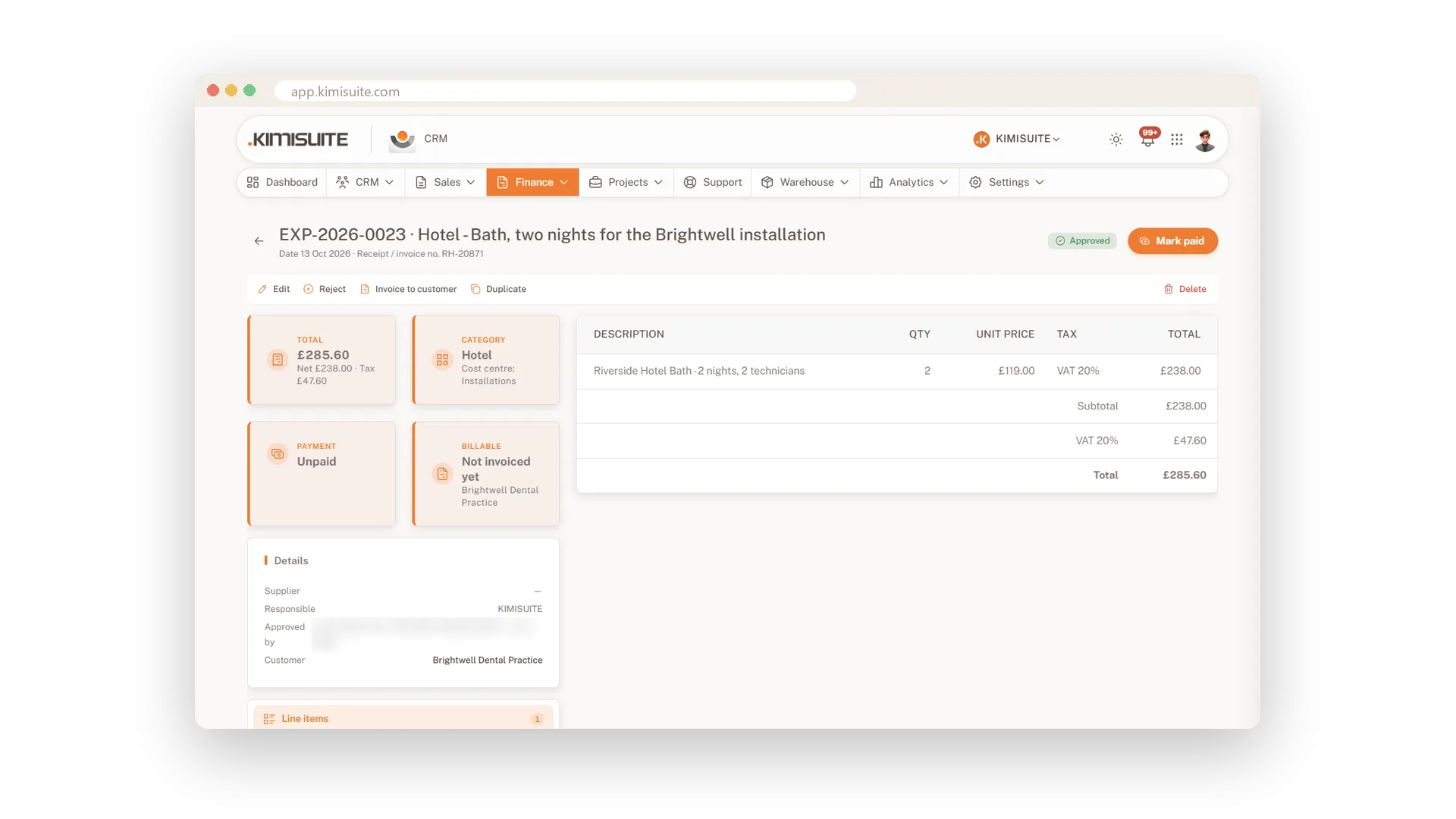
Mark an expense for a customer or a project as billable, and it waits to be added to the next invoice. Material, travel and fees no longer stay with you.
Use Cases
Rent, every month
Enter the rent once as a recurring expense. It comes back every month with the right supplier and category, without anyone typing it in.
Materials for a customer job
You buy parts for a customer's project and record the expense against it. It stays flagged as billable until it lands on an invoice.
Friday bill run
Open the supplier bills and look at what falls due in the next seven days. Pay them, record the payments, and the list is clear.
FAQ

Try CRM Business Hub today
From first lead to paid invoice in one app
14 days free, cancel anytime, no minimum term.